 5003ada671
* Initial commit

* Adding feature flag

* Add schema relation for teams and credentials

* feat: Orgs Schema Changing `scopedMembers` to `orgUsers` (#9209)

* Change scopedMembers to orgMembers

* Change to orgUsers

* Create getUserAdminTeams function & tRPC endpoint

* Get user admin teams on app store page

* Create UserAdminTeams type

* Add user query to getUserAdminTeams

* Letting duplicate slugs for teams to support orgs

* Covering null on unique clauses

* Add dropdown to install button on app store

* Supporting having the orgId in the session cookie

* On app page, only show dropdown if there are teams

* Add teamId to OAuth state

* Create team credential for OAuth flow

* Create team credential for GCal

* Add create user or team credential for Stripe

* Create webex credentials for users or teams

* Fix type error on useAddAppMutation

* Hubspot create credential on user or team

* Zoho create create credential for user or team

* Zoom create credentials on user or team

* Salesforce create credential on user or teams

* OAuth create credentials for user or teams

* Revert Outlook changes

* Revert GCal changes

* Default app instal, create credential on user or team

* Add teamId to credential creation

* Disable installing for teams for calendars

* Include teams when querying installed apps

* Render team credentials on installed page

* Uninstall team apps

* Type fix on app card

* Add input to include user in teams query

* Add dropdown to install app page  for user or team

* Type fixes on category page

* Install app from eventType page to user or team

* Render user and team apps on event type app page

* feat: organization event type filter (#9253)

Signed-off-by: Udit Takkar <udit.07814802719@cse.mait.ac.in>

* Missing changes to support orgs schema changes

* Render user and team apps on event type app page

* Add credentialOwner to eventTypeAppCard types

* Type fixes

* Create hook to check if app is enabled

* Clean up console.logs

* Fix useIsAppEnabled by returning not an array

* Convert event type apps to useIsAppEnabled

* Abstract credential owner type

* Remove console.logs

* On installed app page, show apps if only team credential is installed

* Clean up commented lines

* Handle installing app to just an team event from event type page

* Fix early return when creating team app credential

* Zoom add state to callback

* Get team location credentials and save credential id to location

* feat: Onboarding process to create an organization (#9184)

* Desktop first banner, mobile pending

* Removing dead code and img

* WIP

* Adds Email verification template+translations for organizations (#9202)

* First step done

* Merge branch 'feat/organizations-onboarding' of github.com:calcom/cal.com into feat/organizations-onboarding

* Step 2 done, avatar not working

* Covering null on unique clauses

* Onboarding admins step

* Last step to create teams

* Moving change password handler, improving verifying code flow

* Clearing error before submitting

* Reverting email testing api changes

* Reverting having the banner for now

* Consistent exported components

* Remove unneeded files from banner

* Removing uneeded code

* Fixing avatar selector

* Using meta component for head/descr

* Missing i18n strings

* Feedback

* Making an org avatar (temp)

* Check for subteams slug clashes with usernames

* Fixing create teams onsuccess

* feedback

* Making sure we check requestedSlug now

---------

Co-authored-by: sean-brydon <55134778+sean-brydon@users.noreply.github.com>

* Type fix

* Grab team location credentials

* Add isInstalled to eventType apps query

* feat: [CAL-1816] Organization subdomain support (#9345)

* Desktop first banner, mobile pending

* Removing dead code and img

* WIP

* Adds Email verification template+translations for organizations (#9202)

* First step done

* Merge branch 'feat/organizations-onboarding' of github.com:calcom/cal.com into feat/organizations-onboarding

* Step 2 done, avatar not working

* Covering null on unique clauses

* Onboarding admins step

* Last step to create teams

* Moving change password handler, improving verifying code flow

* Clearing error before submitting

* Reverting email testing api changes

* Reverting having the banner for now

* Consistent exported components

* Remove unneeded files from banner

* Removing uneeded code

* Fixing avatar selector

* Using meta component for head/descr

* Missing i18n strings

* Feedback

* Making an org avatar (temp)

* Check for subteams slug clashes with usernames

* Fixing create teams onsuccess

* Covering users and subteams, excluding non-org users

* Unpublished teams shows correctly

* Create subdomain in Vercel

* feedback

* Renaming Vercel env vars

* Vercel domain check before creation

* Supporting cal-staging.com

* Change to have vercel detect it

* vercel domain check data message error

* Remove check domain

* Making sure we check requestedSlug now

* Feedback and unneeded code

* Reverting unneeded changes

* Unneeded changes

---------

Co-authored-by: sean-brydon <55134778+sean-brydon@users.noreply.github.com>

* Vercel subdomain creation in PROD only

* Enable payment apps for team credentials

* Fix for team-user apps for event types

* Fix layout and add teamId to app card

* Disable apps on managed event types

* Add managed event type fields to event type apps

* Include organizations in query

* Change createAppCredential to createOAuthAppCredential

* Show app installed on teams

* Making sure we let localhost still work

* UI show installed for which team

* Type fixes

* For team events move use host location to top

* Add around to appStore

* New team event types organizer default conf app

* Fix app card bug

* Clean up

* Search for teamId or userId when deleting credential

* Type fixes

* Type fixes

* Type fixes

* Type fixes

* Address feedback

* Feedback

* Type check fixes

* feat: Organization branding in side menu (#9279)

* Desktop first banner, mobile pending

* Removing dead code and img

* WIP

* Adds Email verification template+translations for organizations (#9202)

* First step done

* Merge branch 'feat/organizations-onboarding' of github.com:calcom/cal.com into feat/organizations-onboarding

* Step 2 done, avatar not working

* Covering null on unique clauses

* Onboarding admins step

* Last step to create teams

* Moving change password handler, improving verifying code flow

* Clearing error before submitting

* Reverting email testing api changes

* Reverting having the banner for now

* Consistent exported components

* Remove unneeded files from banner

* Removing uneeded code

* Fixing avatar selector

* Org branding provider used in shell sidebar

* Using meta component for head/descr

* Missing i18n strings

* Feedback

* Making an org avatar (temp)

* Using org avatar (temp)

* Not showing org logo if not set

* User onboarding with org branding (slug)

* Check for subteams slug clashes with usernames

* Fixing create teams onsuccess

* feedback

* Feedback

* Org public profile

* Public profiles for team event types

* Added setup profile alert

* Using org avatar on subteams avatar

* Making sure we show the set up profile on org only

* Profile username availability rely on org hook

* Update apps/web/pages/team/[slug].tsx

Co-authored-by: sean-brydon <55134778+sean-brydon@users.noreply.github.com>

* Update apps/web/pages/team/[slug].tsx

Co-authored-by: sean-brydon <55134778+sean-brydon@users.noreply.github.com>

---------

Co-authored-by: sean-brydon <55134778+sean-brydon@users.noreply.github.com>

* feat: Organization support for event types page (#9449)

* Desktop first banner, mobile pending

* Removing dead code and img

* WIP

* Adds Email verification template+translations for organizations (#9202)

* First step done

* Merge branch 'feat/organizations-onboarding' of github.com:calcom/cal.com into feat/organizations-onboarding

* Step 2 done, avatar not working

* Covering null on unique clauses

* Onboarding admins step

* Last step to create teams

* Moving change password handler, improving verifying code flow

* Clearing error before submitting

* Reverting email testing api changes

* Reverting having the banner for now

* Consistent exported components

* Remove unneeded files from banner

* Removing uneeded code

* Fixing avatar selector

* Org branding provider used in shell sidebar

* Using meta component for head/descr

* Missing i18n strings

* Feedback

* Making an org avatar (temp)

* Using org avatar (temp)

* Not showing org logo if not set

* User onboarding with org branding (slug)

* Check for subteams slug clashes with usernames

* Fixing create teams onsuccess

* feedback

* Feedback

* Org public profile

* Public profiles for team event types

* Added setup profile alert

* Using org avatar on subteams avatar

* Processing orgs and children as profile options

* Reverting change not belonging to this PR

* Making sure we show the set up profile on org only

* Removing console.log

* Comparing memberships to choose the highest one

---------

Co-authored-by: sean-brydon <55134778+sean-brydon@users.noreply.github.com>

* Type errors

* Refactor and type fixes

* Update orgDomains.ts

* Feedback

* Reverting

* NIT

* Address feedback

* fix issue getting org slug from domain

* Improving orgDomains util

* Host comes with port

* Update useRouterQuery.ts

* Fix app card bug

* Fix schema

* Type fixes

* Revert changes to location apps

* Remove console.log

* Fix app store test

* Handle install app dropdown

* Add CalendarApp to `getCalendar`

* Add PaymentApp type fix

* Payment type fix

* Type fixes

* Match with main

* Change type to account for team

* Fix app count for team events

* Type fixes

* More type fixes

* Type fix?

* Fix the type fix

* Remove UserAdminTeams empty array union

* Type fix

* Type fix

* Type fix

* Uses type predicates

* Use teamId. Fixes installation for teams after user installation

* Fix Team Events not working

* Get embed for org events working

* Fix rewrites

* Address feedback

* Type fix

* Fixes

* Add useAppContextWithSchema in useIsAppEnabled

* Type fix for apps using useIsAppEnabled

* Integrations.handler change credentialIds to userCredentialIds

* Remove apps endpoint

* Add LockedIcon and disabled props to event type app context

* Type fixes

* Type fix

* Type fixes

* Show team installed apps for members

* Type fix

* Reverting findFirst

* Revert findFirst

* Avoid a possible 500

* Fix missing tanslation

* Avoid possible 500

* Undo default app for teams

* Type fix

* Fix test

* Update package.json

* feat: Fix invite bug - added tests (#9945)

Co-authored-by: Hariom Balhara <hariombalhara@gmail.com>

* chore: Button Component Tidy up (#9888)

Co-authored-by: Peer Richelsen <peeroke@gmail.com>

* feat: Make Team Private

## What does this PR do?

Fixes https://github.com/calcom/cal.com/issues/8974

1) When user is admin

<img width="1440" alt="Screenshot 2023-07-03 at 6 45 50 PM" src="https://github.com/calcom/cal.com/assets/53316345/ce15158f-d278-4f1a-ba2e-8b63e4274793">

2) When user is not admin and team is private

<img width="1440" alt="Screenshot 2023-07-03 at 6 47 15 PM" src="https://github.com/calcom/cal.com/assets/53316345/ce23560e-690a-4c42-a76d-49691260aa4d">

3)
<img width="1440" alt="Screenshot 2023-07-03 at 6 51 56 PM" src="https://github.com/calcom/cal.com/assets/53316345/13af38f8-5618-4dae-b359-b24dc91e4eb4">


## Type of change

<!-- Please delete bullets that are not relevant. -->

- New feature (non-breaking change which adds functionality)

## How should this be tested?

1) go to Team members page and turn on switch Make Team Private.

Now after making the team private only admin would be able to see all the members list in the settings. There will not be a button to Book a team member instead on the team page like before.


## Mandatory Tasks

- [ ] Make sure you have self-reviewed the code. A decent size PR without self-review might be rejected.

---------

Signed-off-by: Udit Takkar <udit.07814802719@cse.mait.ac.in>
Co-authored-by: Leo Giovanetti <hello@leog.me>
Co-authored-by: Udit Takkar <53316345+Udit-takkar@users.noreply.github.com>
Co-authored-by: sean-brydon <55134778+sean-brydon@users.noreply.github.com>
Co-authored-by: Alan <alannnc@gmail.com>
Co-authored-by: zomars <zomars@me.com>
Co-authored-by: Efraín Rochín <roae.85@gmail.com>
Co-authored-by: Hariom Balhara <hariombalhara@gmail.com>
Co-authored-by: Peer Richelsen <peeroke@gmail.com>
Co-authored-by: Keith Williams <keithwillcode@gmail.com>

Cal.com (formerly Calendso)
The open-source Calendly alternative.
Learn more »
Discord
·
Website
·
Issues
·
Roadmap
















About the Project
Scheduling infrastructure for absolutely everyone
The open source Calendly alternative. You are in charge of your own data, workflow and appearance.
Calendly and other scheduling tools are awesome. It made our lives massively easier. We're using it for business meetings, seminars, yoga classes and even calls with our families. However, most tools are very limited in terms of control and customizations.
That's where Cal.com comes in. Self-hosted or hosted by us. White-label by design. API-driven and ready to be deployed on your own domain. Full control of your events and data.
Recognition
Hacker News
Product Hunt



Built With
Contact us
Meet our sales team for any commercial inquiries.

Stay Up-to-Date
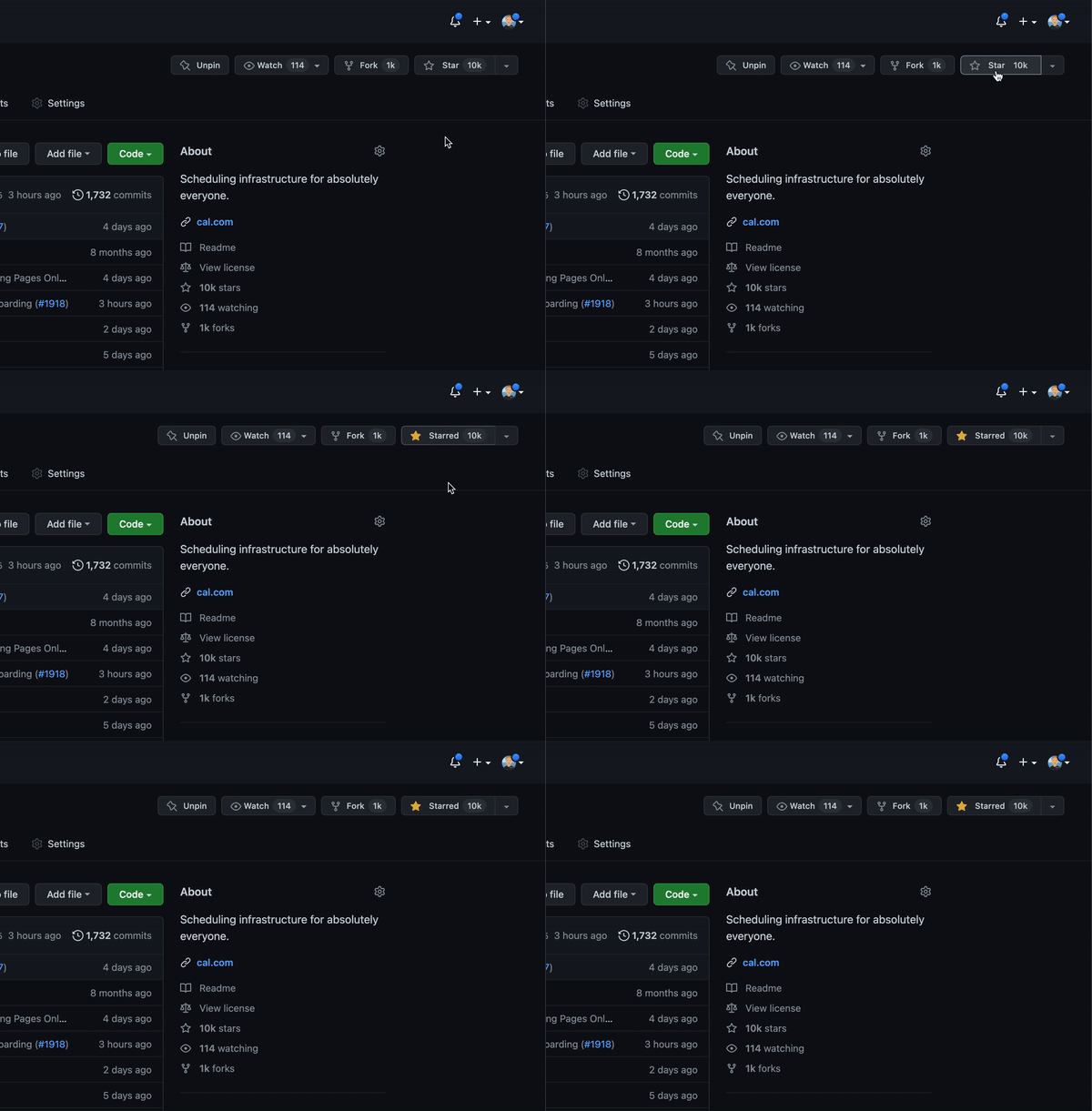
Cal.com officially launched as v.1.0 on 15th of September 2021 and we've come a long way so far. Watch releases of this repository to be notified of future updates:
Getting Started
To get a local copy up and running, please follow these simple steps.
Prerequisites
Here is what you need to be able to run Cal.com.
- Node.js (Version: >=18.x)
- PostgreSQL
- Yarn (recommended)
If you want to enable any of the available integrations, you may want to obtain additional credentials for each one. More details on this can be found below under the integrations section.
Development
Setup
-
Clone the repo into a public GitHub repository (or fork https://github.com/calcom/cal.com/fork). If you plan to distribute the code, keep the source code public to comply with AGPLv3. To clone in a private repository, acquire a commercial license)
git clone https://github.com/calcom/cal.com.gitIf you are on windows, run the following command on
gitbashwith admin privileges:
>git clone -c core.symlinks=true https://github.com/calcom/cal.com.git
See docs for more details. -
Go to the project folder
cd cal.com -
Install packages with yarn
yarn -
Set up your
.envfile- Duplicate
.env.exampleto.env - Use
openssl rand -base64 32to generate a key and add it underNEXTAUTH_SECRETin the.envfile. - Use
openssl rand -base64 24to generate a key and add it underCALENDSO_ENCRYPTION_KEYin the.envfile.
- Duplicate
Quick start with yarn dx
- Requires Docker and Docker Compose to be installed
- Will start a local Postgres instance with a few test users - the credentials will be logged in the console
yarn dx
Development tip
Add
NEXT_PUBLIC_DEBUG=1anywhere in your.envto get logging information for all the queries and mutations driven by tRPC.
echo 'NEXT_PUBLIC_DEBUG=1' >> .env
Gitpod Setup
-
Click the button below to open this project in Gitpod.
-
This will open a fully configured workspace in your browser with all the necessary dependencies already installed.

Manual setup
-
Configure environment variables in the
.envfile. Replace<user>,<pass>,<db-host>, and<db-port>with their applicable valuesDATABASE_URL='postgresql://<user>:<pass>@<db-host>:<db-port>'If you don't know how to configure the DATABASE_URL, then follow the steps here to create a quick local DB
-
Download and install postgres in your local (if you don't have it already).
-
Create your own local db by executing
createDB <DB name> -
Now open your psql shell with the DB you created:
psql -h localhost -U postgres -d <DB name> -
Inside the psql shell execute
\conninfo. And you will get the following info.

-
Now extract all the info and add it to your DATABASE_URL. The url would look something like this
postgresql://postgres:postgres@localhost:5432/Your-DB-Name.
If you don't want to create a local DB. Then you can also consider using services like railway.app or render.
-
-
Copy and paste your
DATABASE_URLfrom.envto.env.appStore. -
Set a 32 character random string in your
.envfile for theCALENDSO_ENCRYPTION_KEY(You can use a command likeopenssl rand -base64 24to generate one). -
Set up the database using the Prisma schema (found in
packages/prisma/schema.prisma)In a development environment, run:
yarn workspace @calcom/prisma db-migrateIn a production environment, run:
yarn workspace @calcom/prisma db-deploy -
Run mailhog to view emails sent during development
docker pull mailhog/mailhog docker run -d -p 8025:8025 -p 1025:1025 mailhog/mailhog -
Run (in development mode)
yarn dev
Setting up your first user
-
Open Prisma Studio to look at or modify the database content:
yarn db-studio -
Click on the
Usermodel to add a new user record. -
Fill out the fields
email,username,password, and setmetadatato empty{}(remembering to encrypt your password with BCrypt) and clickSave 1 Recordto create your first user.New users are set on a
TRIALplan by default. You might want to adjust this behavior to your needs in thepackages/prisma/schema.prismafile. -
Open a browser to http://localhost:3000 and login with your just created, first user.
E2E-Testing
Be sure to set the environment variable NEXTAUTH_URL to the correct value. If you are running locally, as the documentation within .env.example mentions, the value should be http://localhost:3000.
# In a terminal just run:
yarn test-e2e

# To open last HTML report run:
yarn playwright show-report test-results/reports/playwright-html-report
Upgrading from earlier versions
-
Pull the current version:
git pull -
Check if dependencies got added/updated/removed
yarn -
Apply database migrations by running one of the following commands:
In a development environment, run:
yarn workspace @calcom/prisma db-migrate(This can clear your development database in some cases)
In a production environment, run:
yarn workspace @calcom/prisma db-deploy -
Check for
.envvariables changesyarn predev -
Start the server. In a development environment, just do:
yarn devFor a production build, run for example:
yarn build yarn start -
Enjoy the new version.
Deployment
Docker
The Docker configuration for Cal.com is an effort powered by people within the community.
If you want to contribute to the Docker repository, reply here.
The Docker configuration can be found in our docker repository.
Issues with Docker? Find your answer or open a new discussion here to ask the community.
Cal.com, Inc. does not provide official support for Docker, but we will accept fixes and documentation. Use at your own risk.
Railway

You can deploy Cal.com on Railway using the button above. The team at Railway also have a detailed blog post on deploying Cal.com on their platform.
Vercel
Currently Vercel Pro Plan is required to be able to Deploy this application with Vercel, due to limitations on the number of serverless functions on the free plan.
Render

Roadmap

See the roadmap project for a list of proposed features (and known issues). You can change the view to see planned tagged releases.
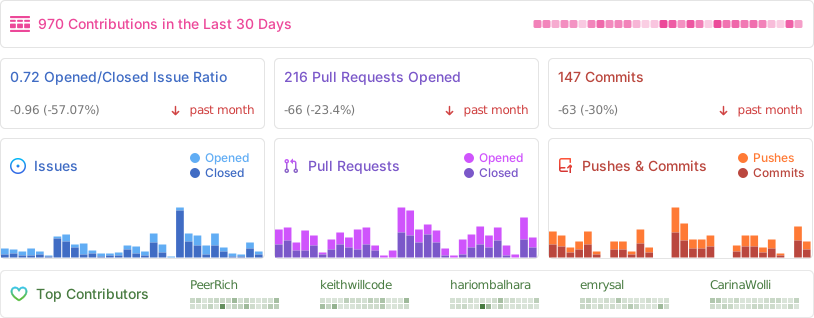
Repo Activity
Contributing
Please see our contributing guide.
Good First Issues
We have a list of help wanted that contain small features and bugs which have a relatively limited scope. This is a great place to get started, gain experience, and get familiar with our contribution process.
Bounties

Contributors
Translations
Don't code but still want to contribute? Join our discord and join the #Translate channel and let us know what language you want to translate.


Enabling Content Security Policy
- Set CSP_POLICY="non-strict" env variable, which enables Strict CSP except for unsafe-inline in style-src . If you have some custom changes in your instance, you might have to make some code change to make your instance CSP compatible. Right now it enables strict CSP only on login page and on other SSR pages it is enabled in Report only mode to detect possible issues. On, SSG pages it is still not supported.
Integrations
Obtaining the Google API Credentials
- Open Google API Console. If you don't have a project in your Google Cloud subscription, you'll need to create one before proceeding further. Under Dashboard pane, select Enable APIS and Services.
- In the search box, type calendar and select the Google Calendar API search result.
- Enable the selected API.
- Next, go to the OAuth consent screen from the side pane. Select the app type (Internal or External) and enter the basic app details on the first page.
- In the second page on Scopes, select Add or Remove Scopes. Search for Calendar.event and select the scope with scope value
.../auth/calendar.events,.../auth/calendar.readonlyand select Update. - In the third page (Test Users), add the Google account(s) you'll using. Make sure the details are correct on the last page of the wizard and your consent screen will be configured.
- Now select Credentials from the side pane and then select Create Credentials. Select the OAuth Client ID option.
- Select Web Application as the Application Type.
- Under Authorized redirect URI's, select Add URI and then add the URI
<Cal.com URL>/api/integrations/googlecalendar/callbackand<Cal.com URL>/api/auth/callback/googlereplacing Cal.com URL with the URI at which your application runs. - The key will be created and you will be redirected back to the Credentials page. Select the newly generated client ID under OAuth 2.0 Client IDs.
- Select Download JSON. Copy the contents of this file and paste the entire JSON string in the
.envfile as the value forGOOGLE_API_CREDENTIALSkey.
Adding google calendar to Cal.com App Store
After adding Google credentials, you can now Google Calendar App to the app store. You can repopulate the App store by running
cd packages/prisma
yarn seed-app-store
You will need to complete a few more steps to activate Google Calendar App. Make sure to complete section "Obtaining the Google API Credentials". After the do the following
- Add extra redirect URL
<Cal.com URL>/api/auth/callback/google - Under 'OAuth consent screen', click "PUBLISH APP"
Obtaining Microsoft Graph Client ID and Secret
- Open Azure App Registration and select New registration
- Name your application
- Set Who can use this application or access this API? to Accounts in any organizational directory (Any Azure AD directory - Multitenant)
- Set the Web redirect URI to
<Cal.com URL>/api/integrations/office365calendar/callbackreplacing Cal.com URL with the URI at which your application runs. - Use Application (client) ID as the MS_GRAPH_CLIENT_ID attribute value in .env
- Click Certificates & secrets create a new client secret and use the value as the MS_GRAPH_CLIENT_SECRET attribute
Obtaining Zoom Client ID and Secret
- Open Zoom Marketplace and sign in with your Zoom account.
- On the upper right, click "Develop" => "Build App".
- On "OAuth", select "Create".
- Name your App.
- Choose "User-managed app" as the app type.
- De-select the option to publish the app on the Zoom App Marketplace.
- Click "Create".
- Now copy the Client ID and Client Secret to your
.envfile into theZOOM_CLIENT_IDandZOOM_CLIENT_SECRETfields. - Set the Redirect URL for OAuth
<Cal.com URL>/api/integrations/zoomvideo/callbackreplacing Cal.com URL with the URI at which your application runs. - Also add the redirect URL given above as a allow list URL and enable "Subdomain check". Make sure, it says "saved" below the form.
- You don't need to provide basic information about your app. Instead click at "Scopes" and then at "+ Add Scopes". On the left, click the category "Meeting" and check the scope
meeting:write. - Click "Done".
- You're good to go. Now you can easily add your Zoom integration in the Cal.com settings.
Obtaining Daily API Credentials
- Visit our Daily.co Partnership Form and enter your information
- From within your dashboard, go to the developers tab.
- Copy your API key.
- Now paste the API key to your
.envfile into theDAILY_API_KEYfield in your.envfile. - If you have the Daily Scale Plan set the
DAILY_SCALE_PLANvariable totruein order to use features like video recording.
Obtaining HubSpot Client ID and Secret
- Open HubSpot Developer and sign into your account, or create a new one.
- From within the home of the Developer account page, go to "Manage apps".
- Click "Create app" button top right.
- Fill in any information you want in the "App info" tab
- Go to tab "Auth"
- Now copy the Client ID and Client Secret to your
.envfile into theHUBSPOT_CLIENT_IDandHUBSPOT_CLIENT_SECRETfields. - Set the Redirect URL for OAuth
<Cal.com URL>/api/integrations/hubspot/callbackreplacing Cal.com URL with the URI at which your application runs. - In the "Scopes" section at the bottom of the page, make sure you select "Read" and "Write" for scope called
crm.objects.contacts - Click the "Save" button at the bottom footer.
- You're good to go. Now you can see any booking in Cal.com created as a meeting in HubSpot for your contacts.
Obtaining Webex Client ID and Secret
Obtaining ZohoCRM Client ID and Secret
- Open Zoho API Console and sign into your account, or create a new one.
- From within the API console page, go to "Applications".
- Click "ADD CLIENT" button top right and select "Server-based Applications".
- Fill in any information you want in the "Client Details" tab
- Go to tab "Client Secret" tab.
- Now copy the Client ID and Client Secret to your
.envfile into theZOHOCRM_CLIENT_IDandZOHOCRM_CLIENT_SECRETfields. - Set the Redirect URL for OAuth
<Cal.com URL>/api/integrations/zohocrm/callbackreplacing Cal.com URL with the URI at which your application runs. - In the "Settings" section check the "Multi-DC" option if you wish to use the same OAuth credentials for all data centers.
- Click the "Save"/ "UPDATE" button at the bottom footer.
- You're good to go. Now you can easily add your ZohoCRM integration in the Cal.com settings.
Obtaining Zoho Bigin Client ID and Secret
Workflows
Setting up SendGrid for Email reminders
- Create a SendGrid account (https://signup.sendgrid.com/)
- Go to Settings -> API keys and create an API key
- Copy API key to your
.envfile into theSENDGRID_API_KEYfield - Go to Settings -> Sender Authentication and verify a single sender
- Copy the verified E-Mail to your
.envfile into theSENDGRID_EMAILfield - Add your custom sender name to the
.envfile into theNEXT_PUBLIC_SENDGRID_SENDER_NAMEfield (fallback is Cal.com)
Setting up Twilio for SMS reminders
- Create a Twilio account (https://twilio.com/try-twilio)
- Click ‘Get a Twilio phone number’
- Copy Account SID to your
.envfile into theTWILIO_SIDfield - Copy Auth Token to your
.envfile into theTWILIO_TOKENfield - Copy your Twilio phone number to your
.envfile into theTWILIO_PHONE_NUMBERfield - Add your own sender id to the
.envfile into theNEXT_PUBLIC_SENDER_IDfield (fallback is Cal.com) - Create a messaging service (Develop -> Messaging -> Services)
- Choose any name for the messaging service
- Click 'Add Senders'
- Choose phone number as sender type
- Add the listed phone number
- Leave all other fields as they are
- Complete setup and click ‘View my new Messaging Service’
- Copy Messaging Service SID to your
.envfile into theTWILIO_MESSAGING_SIDfield - Create a verify service
- Copy Verify Service SID to your
.envfile into theTWILIO_VERIFY_SIDfield
License
Distributed under the AGPLv3 License. See LICENSE for more information.
Acknowledgements
Special thanks to these amazing projects which help power Cal.com:


Cal.com is an open startup and Jitsu (an open-source Segment alternative) helps us to track most of the usage metrics.