
A getting started guide to self-hosting Plausible Community Edition
**Contact**: - For release announcements please go to [GitHub releases.](https://github.com/plausible/analytics/releases) - For a question or advice please go to [GitHub discussions.](https://github.com/plausible/analytics/discussions/categories/self-hosted-support) ---Install • Upgrade • Configure • Integrate • FAQ
--- ## Install Plausible Community Edition (or CE for short) is designed to be self-hosted through Docker. You don't have to be a Docker expert to launch your own instance, but you should have a basic understanding of the command-line and networking to successfully set it up. ### Requirements The only thing you need to install Plausible CE is a server with Docker. The server must have a CPU with x86_64 or arm64 architecture and support for SSE 4.2 or equivalent NEON instructions. We recommend using a minimum of 4GB of RAM but the requirements will depend on your site traffic. We've tested this on [Digital Ocean](https://m.do.co/c/91569eca0213) (affiliate link) but any hosting provider works. If your server doesn't come with Docker pre-installed, you can follow [their docs](https://docs.docker.com/get-docker/) to install it. To make your Plausible CE instance accessible on a (sub)domain, you also need to be able to edit your DNS. Plausible CE isn't currently designed for subfolder installations. ### Quick start To get started quickly, clone the [plausible/community-edition](https://github.com/plausible/community-edition) repo. It has everything you need to boot up your own Plausible CE server. console ```console $ mkdir hosting $ cd hosting $ git clone https://github.com/plausible/community-edition . Cloning into 'community-edition'... remote: Enumerating objects: 280, done. remote: Counting objects: 100% (146/146), done. remote: Compressing objects: 100% (74/74), done. remote: Total 280 (delta 106), reused 86 (delta 71), pack-reused 134 Receiving objects: 100% (280/280), 69.44 KiB | 7.71 MiB/s, done. Resolving deltas: 100% (136/136), done. $ ls README.md clickhouse/ docker-compose.yml images/ plausible-conf.env reverse-proxy/ upgrade/ ``` In the downloaded directory you'll find two important files: - [`docker-compose.yml`](https://github.com/plausible/hosting/blob/master/docker-compose.yml) - installs and orchestrates networking between your Plausible CE server, Postgres database, Clickhouse database (for stats), and an SMTP server. - [`plausible-conf.env`](https://github.com/plausible/hosting/blob/master/plausible-conf.env) - configures the Plausible server itself. Full configuration options are documented [below.](#configure) Right now the latter looks like this: [plausible-conf.env](https://github.com/plausible/hosting/blob/master/plausible-conf.env) ```env BASE_URL=replace-me SECRET_KEY_BASE=replace-me ``` Let's do as it asks and populate these required environment variables with our own values. First we generate the [`SECRET_KEY_BASE`](#secret_key_base) using `openssl` console ```console $ openssl rand -base64 48 GLVzDZW04FzuS1gMcmBRVhwgd4Gu9YmSl/k/TqfTUXti7FLBd7aflXeQDdwCj6Cz ``` And then we decide on the [`BASE_URL`](#base_url) where the instance would be accessible. Let's assume we choose `http://plausible.example.com` plausible-conf.env ```diff - BASE_URL=replace-me + BASE_URL=http://plausible.example.com - SECRET_KEY_BASE=replace-me + SECRET_KEY_BASE=GLVzDZW04FzuS1gMcmBRVhwgd4Gu9YmSl/k/TqfTUXti7FLBd7aflXeQDdwCj6Cz ``` We can start our instance now but the requests would be served over HTTP. Not cool! Let's configure [Caddy](https://caddyserver.com) to enable HTTPS. > For other reverse-proxy setups please see [reverse-proxy](https://github.com/plausible/hosting/tree/master/reverse-proxy) docs. First we need to point DNS records for `plausible.example.com` to the IP address of the instance. This is needed for Caddy to issue the TLS certificates. Then we need to let Caddy know the domain name for which to issue the TLS certificate and the service to redirect the requests to. [reverse-proxy/docker-compose.caddy-gen.yml](https://github.com/plausible/hosting/blob/master/reverse-proxy/docker-compose.caddy-gen.yml) ```diff plausible: labels: - virtual.host: "example.com" # change to your domain name + virtual.host: "plausible.example.com" virtual.port: "8000" - virtual.tls-email: "admin@example.com" # change to your email + virtual.tls-email: "admin@plausible.example.com" ``` Finally we need to update `BASE_URL` to use `https://` scheme. plausible-conf.env ```diff - BASE_URL=http://plausible.example.com + BASE_URL=https://plausible.example.com SECRET_KEY_BASE=GLVzDZW04FzuS1gMcmBRVhwgd4Gu9YmSl/k/TqfTUXti7FLBd7aflXeQDdwCj6Cz ``` Now we can start everything together. console ```console $ docker compose -f docker-compose.yml -f reverse-proxy/docker-compose.caddy-gen.yml up -d [+] Running 19/19 ✔ plausible_db 9 layers [⣿⣿⣿⣿⣿⣿⣿] Pulled ✔ plausible_events_db 7 layers [⣿⣿⣿⣿⣿⣿⣿] Pulled ✔ plausible 7 layers [⣿⣿⣿⣿⣿⣿⣿] Pulled ✔ caddy-gen 8 layers [⣿⣿⣿⣿⣿⣿⣿⣿] Pulled [+] Running 5/5 ✔ Network hosting_default Created ✔ Container hosting-plausible_db-1 Started ✔ Container hosting-plausible_events_db-1 Started ✔ Container hosting-plausible-1 Started ✔ Container caddy-gen Started ``` It takes some time to start PostgreSQL and ClickHouse, create the databases, and run the migrations. After about fifteen seconds you should be able to access your instance at `BASE_URL` and see the registration screen for the admin user. In case something feels off, make sure to check out the logs with docker compose logs and start a [GitHub discussion.](https://github.com/plausible/analytics/discussions/categories/self-hosted-support) Happy hosting! Next we'll go over how to upgrade the instance when a new release comes out, more things to configure, and how to integrate with Google and others! ## Upgrade Each new [release](https://github.com/plausible/analytics/releases/tag/v2.0.0) contains information on how to upgrade to it from the previous version. This section outlines the general steps and explains the versioning. ### Version management Plausible CE follows [semantic versioning:](https://semver.org/) `MAJOR.MINOR.PATCH` You can find available Plausible versions on [DockerHub](https://hub.docker.com/r/plausible/analytics). The default `latest` tag refers to the latest stable release tag. You can also pin your version: - `plausible/analytics:v2` pins the major version to `2` but allows minor and patch version upgrades - `plausible/analytics:v2.0` pins the minor version to `2.0` but allows only patch upgrades None of the functionality is backported to older versions. If you wish to get the latest bug fixes and security updates you need to upgrade to a newer version. New versions are published on [the releases page](https://github.com/plausible/analytics/releases) and their changes are documented in our [Changelog.](https://github.com/plausible/analytics/blob/master/CHANGELOG.md) Please note that database schema changes require running migrations when you're upgrading. However, we consider the schema as an internal API and therefore schema changes aren't considered a breaking change. We recommend to pin the major version instead of using `latest`. Either way the general flow for upgrading between minor version would look like this: ```console $ cd hosting $ docker compose stop plausible [+] Running 1/1 ✔ Container hosting-plausible-1 Stopped $ docker compose rm plausible ? Going to remove hosting-plausible-1 Yes [+] Running 1/0 ✔ Container hosting-plausible-1 Removed $ docker compose -f docker-compose.yml -f reverse-proxy/docker-compose.caddy-gen.yml up -d [+] Running 8/8 ✔ plausible 7 layers [⣿⣿⣿⣿⣿⣿⣿] 0B/0B Pulled 6.4s ✔ 96526aa774ef Pull complete 0.4s ✔ 93631fa7258d Pull complete 0.6s ✔ 06afbc05374b Pull complete 1.6s ✔ 7ddeeadcce1e Pull complete 1.2s ✔ 724ddb9b523f Pull complete 2.8s ✔ 32581b0068b9 Pull complete 1.7s ✔ 4f4fb700ef54 Pull complete 2.0s [+] Running 4/4 ✔ Container hosting-plausible_events_db-1 Running 0.0s ✔ Container hosting-plausible_db-1 Running 0.0s ✔ Container hosting-plausible-1 Started 1.2s ✔ Container caddy-gen Running 0.0s $ docker images --filter=reference='plausible/analytics:*' REPOSITORY TAG IMAGE ID CREATED SIZE plausible/analytics v2.0 2b2735265a65 7 months ago 163MB plausible/analytics v1.5 5e1e0047953a 8 months ago 130MB $ docker rmi 5e1e0047953a Untagged: plausible/analytics:v1.5 Untagged: plausible/analytics@sha256:365124b00f103ac40ce3c64cd49a869d94f2ded221d9bb7900be1cecfaf34acf Deleted: sha256:5e1e0047953afc179ee884389e152b3f07343fb34e5586f9ecc2f33c6ba3bcaa // etc. ``` > You can omit -f docker-compose.yml -f reverse-proxy/docker-compose.caddy-gen.yml if you are not using Caddy. Changes in major versions would involve performing a data migration (e.g.[v2.0.0](https://github.com/plausible/analytics/releases/tag/v2.0.0)) or some other extra step. ## Configure Plausible is configured with environment variables, by default supplied via [plausible-conf.env](https://github.com/plausible/hosting/blob/master/plausible-conf.env) [env_file.](https://github.com/plausible/hosting/blob/bb6decee4d33ccf84eb235b6053443a01498db53/docker-compose.yml#L38-L39) > Note that if you start a container with one set of ENV vars and then update the ENV vars and restart the container, they won't take effect due to the immutable nature of the containers. The container needs to be recreated. Here's the minimal plausible-conf.env we got from [Quick start.](#quick-start) ```env BASE_URL=https://plausible.example.com SECRET_KEY_BASE=GLVzDZW04FzuS1gMcmBRVhwgd4Gu9YmSl/k/TqfTUXti7FLBd7aflXeQDdwCj6Cz ``` And here's plausible-conf.env with some extra configuration ```env BASE_URL=https://plausible.example.com SECRET_KEY_BASE=GLVzDZW04FzuS1gMcmBRVhwgd4Gu9YmSl/k/TqfTUXti7FLBd7aflXeQDdwCj6Cz MAXMIND_LICENSE_KEY=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 MAXMIND_EDITION=GeoLite2-City GOOGLE_CLIENT_ID=140927866833-002gqg48rl4iku76lbkk0qhu0i0m7bia.apps.googleusercontent.com GOOGLE_CLIENT_SECRET=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 MAILER_NAME=Plausible MAILER_EMAIL=plausible@plausible.example.com DISABLE_REGISTRATION=invite_only ``` Here're the currently supported ENV vars: ### Required #### `BASE_URL` Configures the base URL to use in link generation, doesn't have any defaults and needs to be provided in the ENV vars plausible-conf.env ```env BASE_URL=https://example.fun ``` > In production systems, this should be your ingress host (CDN or proxy). --- #### `SECRET_KEY_BASE` Configures the secret used for sessions in the dashboard, doesn't have any defaults and needs to be provided in the ENV vars, can be generated with `openssl rand -base64 48` console ```console $ openssl rand -base64 48 GLVzDZW04FzuS1gMcmBRVhwgd4Gu9YmSl/k/TqfTUXti7FLBd7aflXeQDdwCj6Cz ``` plausible-conf.env ```env SECRET_KEY_BASE=GLVzDZW04FzuS1gMcmBRVhwgd4Gu9YmSl/k/TqfTUXti7FLBd7aflXeQDdwCj6Cz `````` > ⚠️ Don't use this exact value or someone would be able to sign a cookie with `user_id=1` and log in as the admin! ### Optional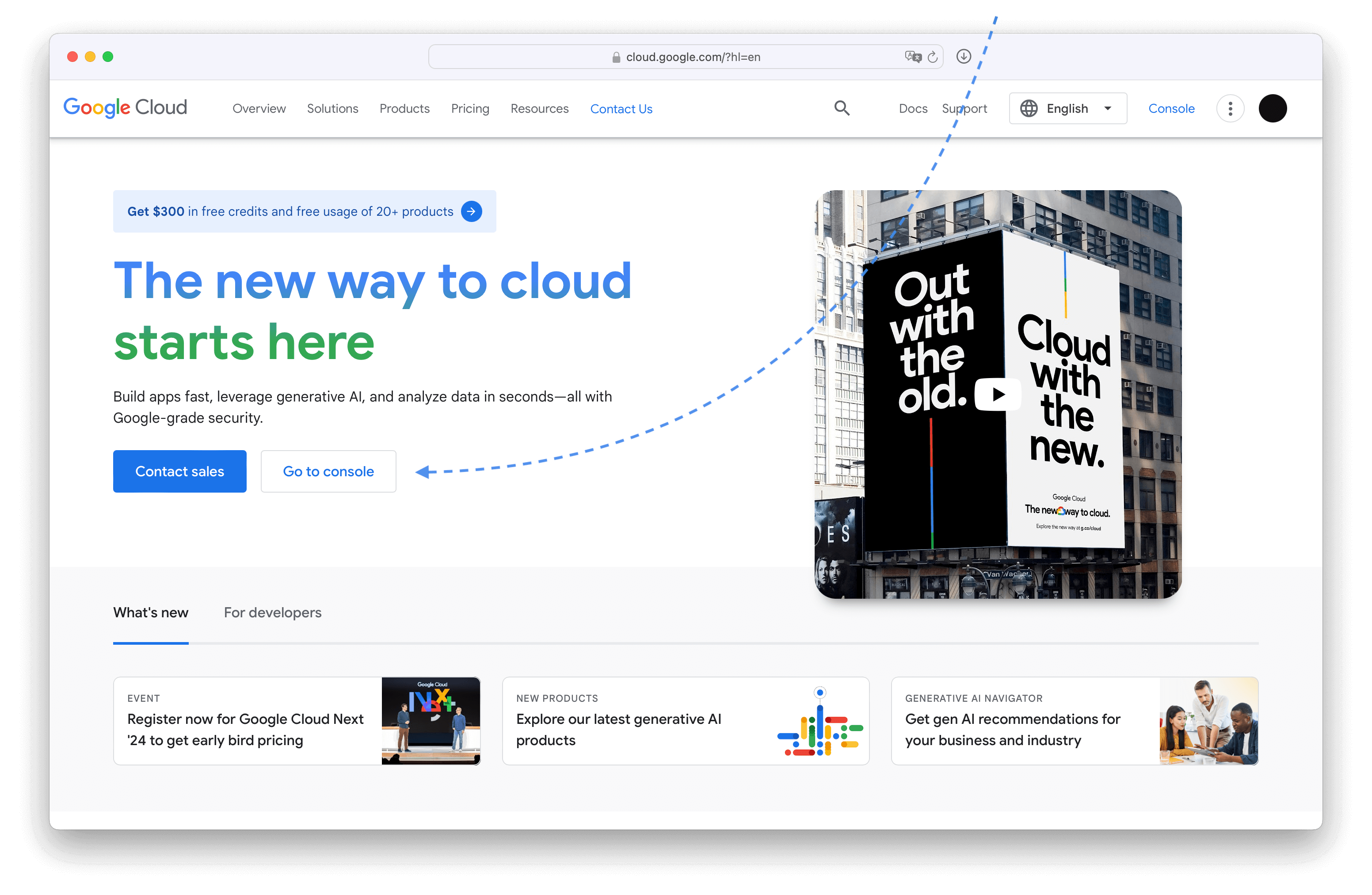 Once there, select a project that you want to use for Plausible OAuth app.
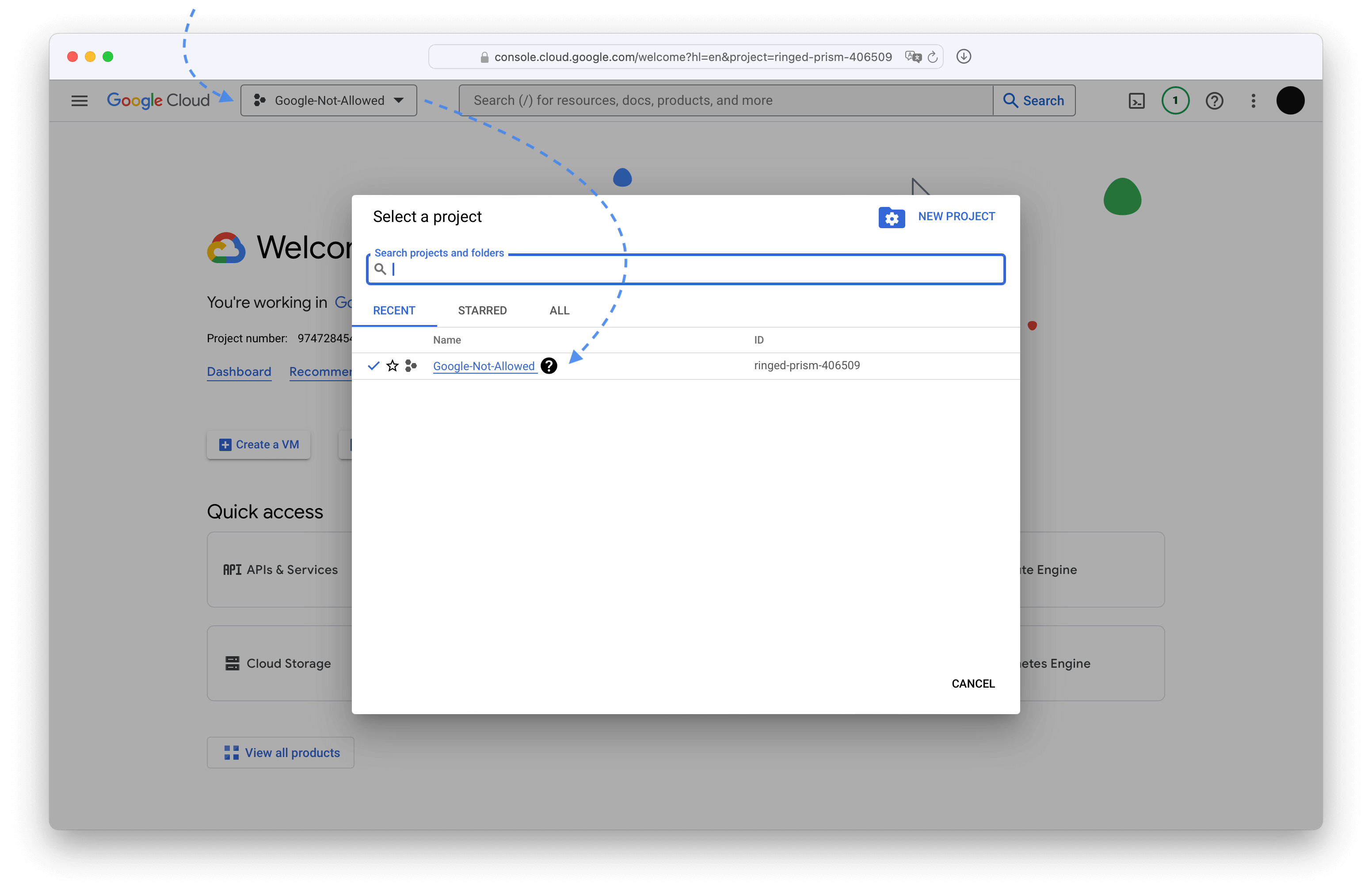 If you don't have a project already, or if you want to isolate Plausible from all your other Google Cloud things, you should create a new project.
---
If you don't have a project already, or if you want to isolate Plausible from all your other Google Cloud things, you should create a new project.
---
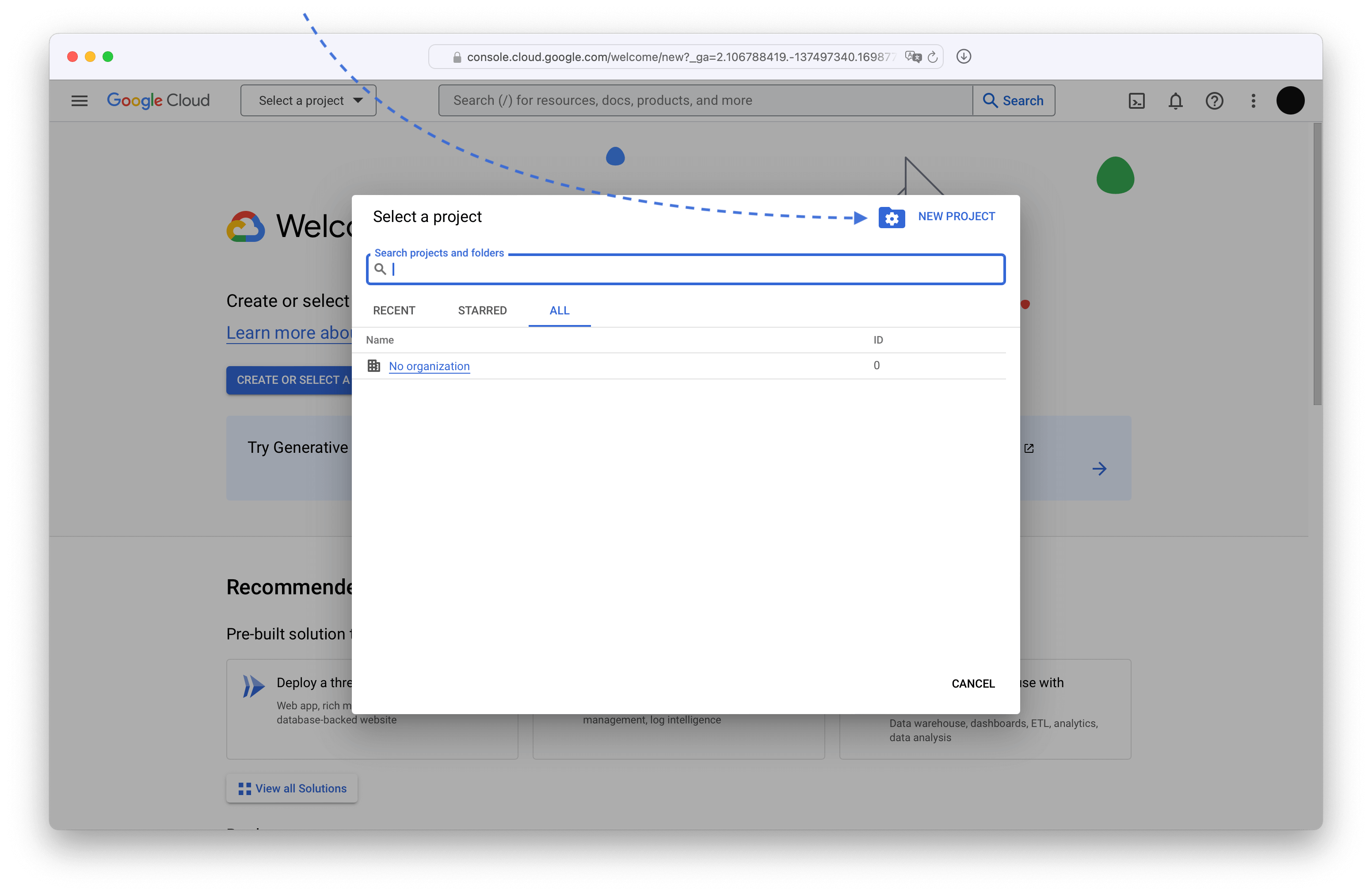 Pick a descriptive name. Organizations don't matter.
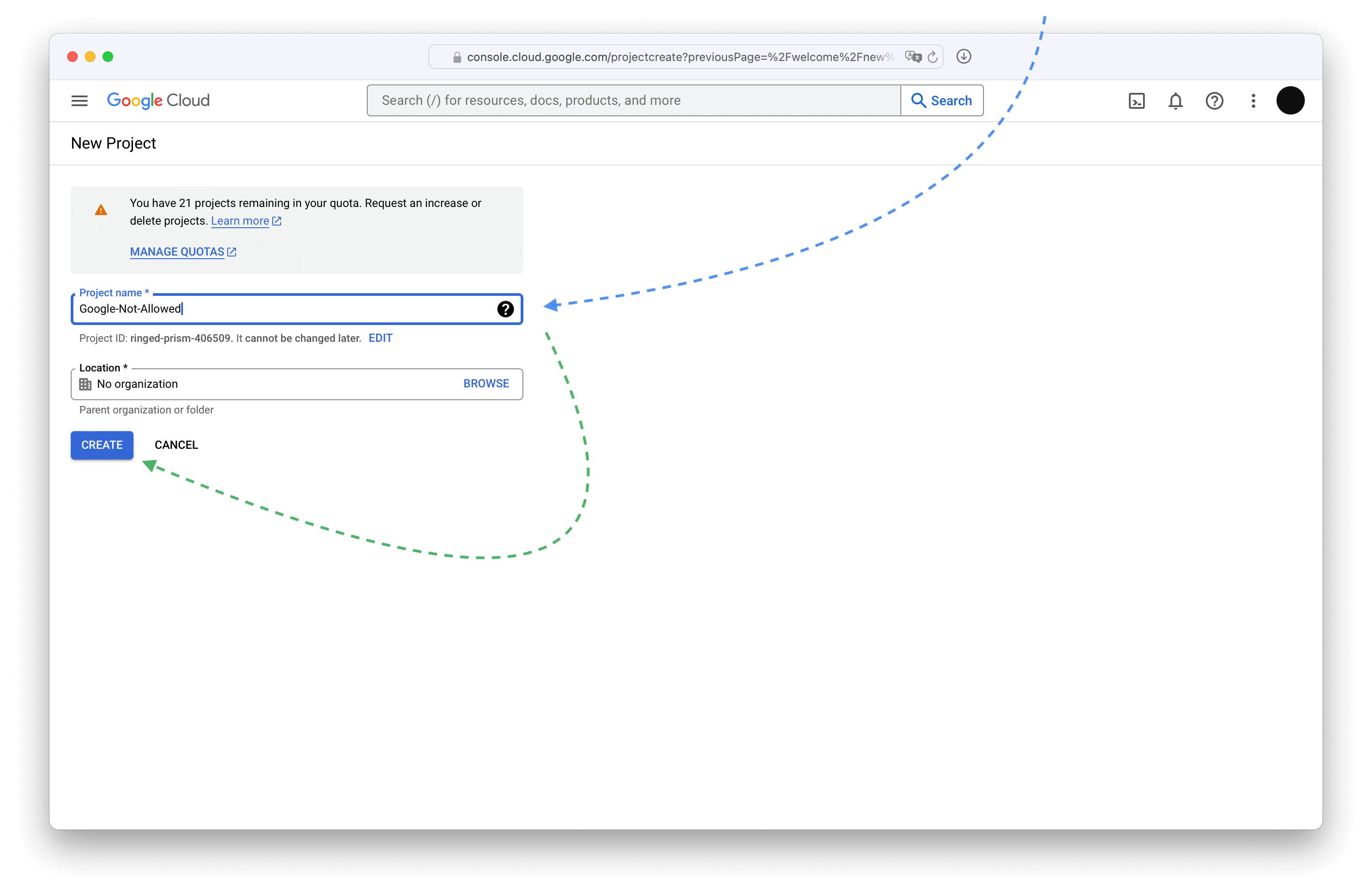 Once the project is created, select it and make sure all the other steps happen within that project. Google is tricky and sometimes switches you to a "default" project.
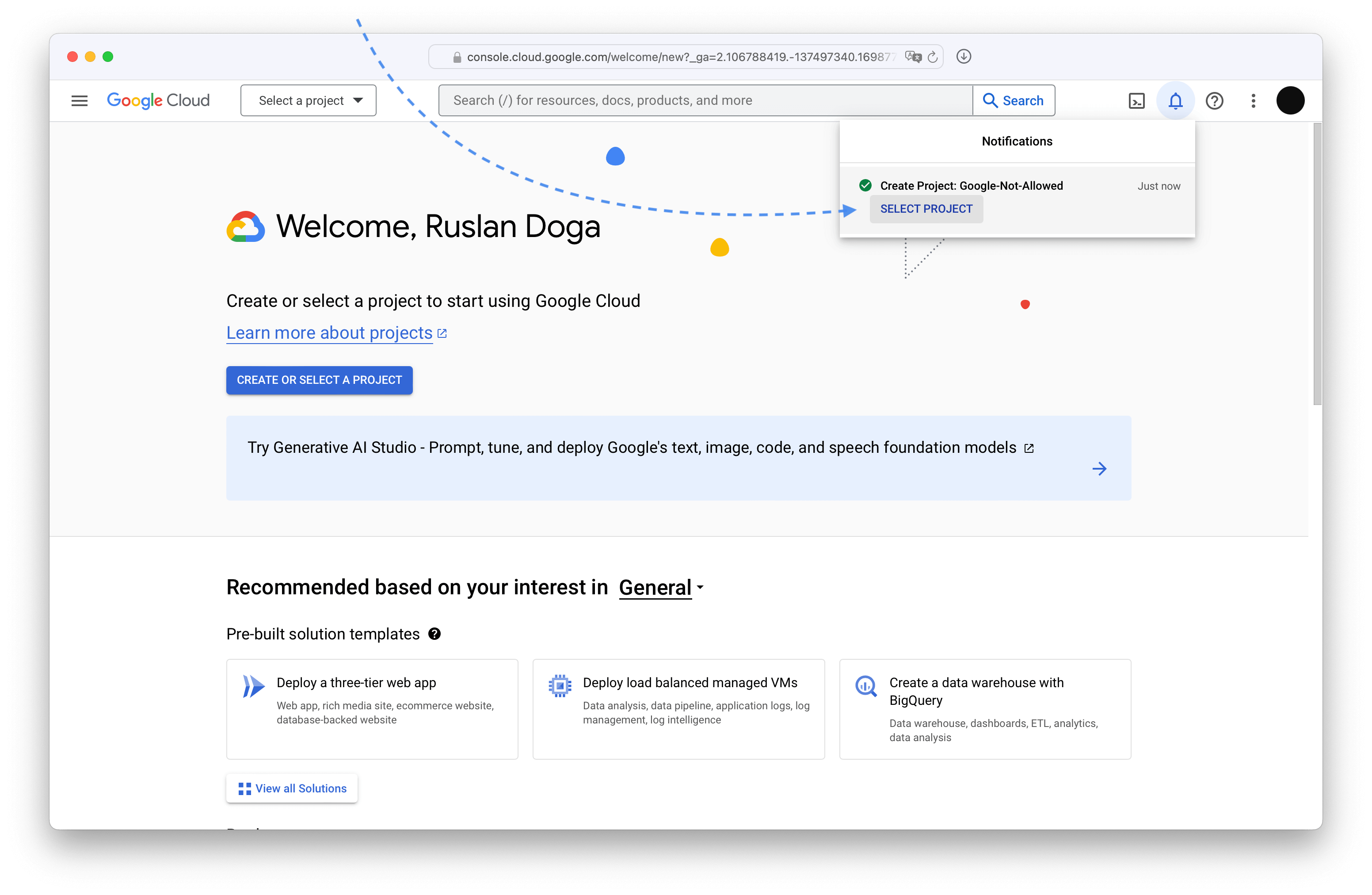 And just like that, you have a new Google Cloud project! Please do make sure it stays selected.
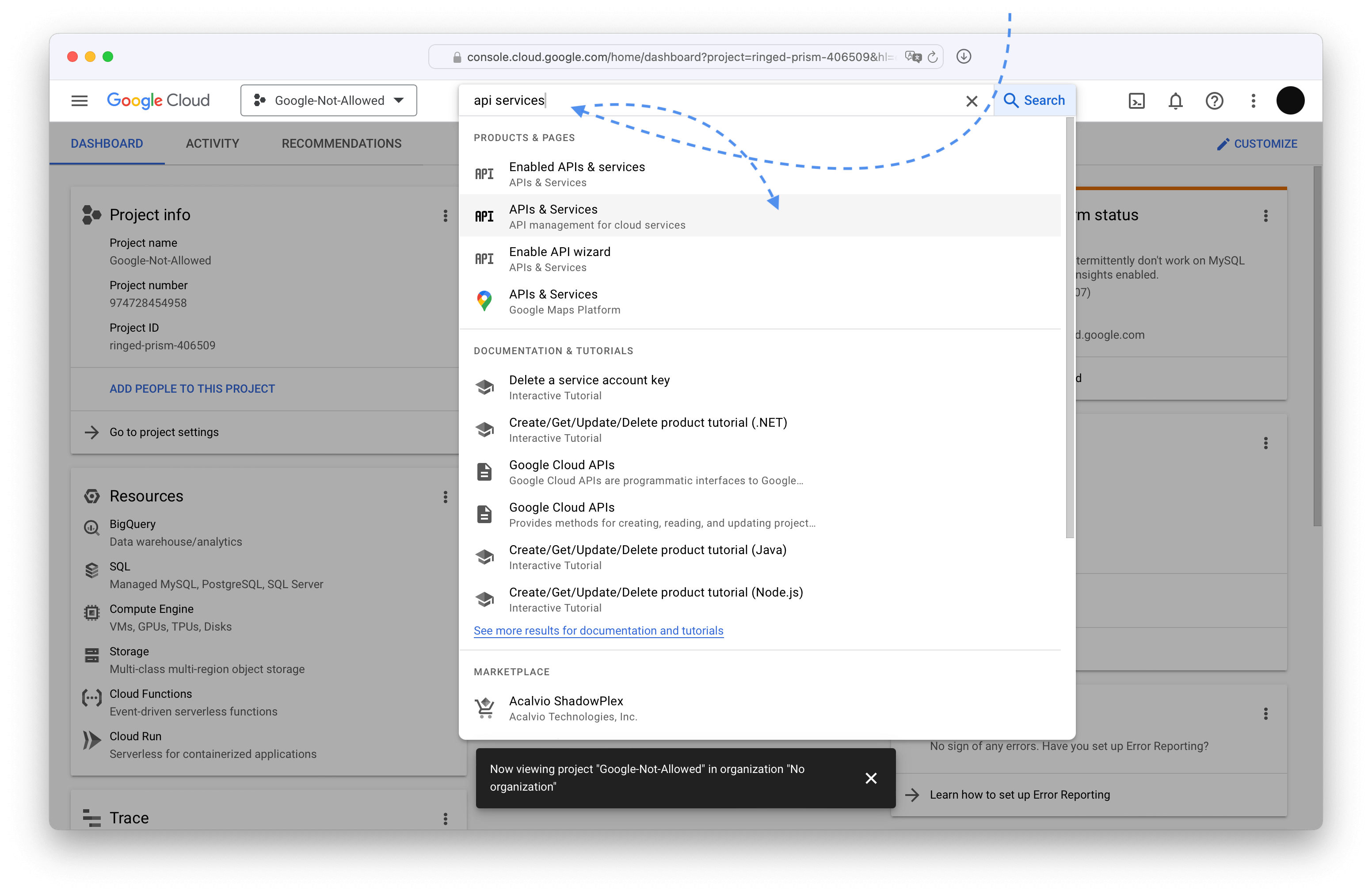 Then in the left sidebar pick OAuth consent screen to begin the OAuth application registration.
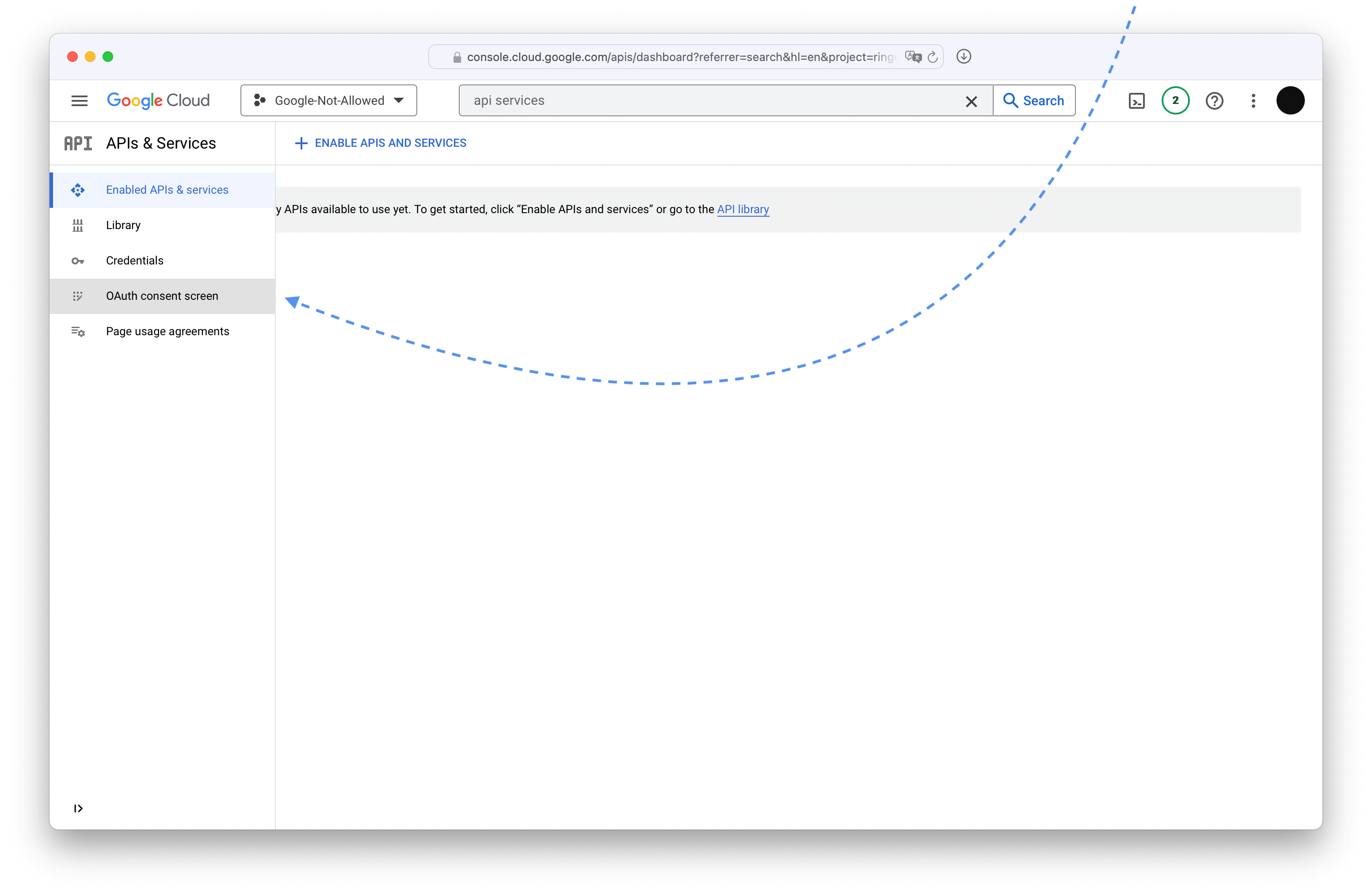 Choose External for the application type since the other one requires a Google Workspace and that costs money.
 On the next screen pick the name for your application and add your contact information.
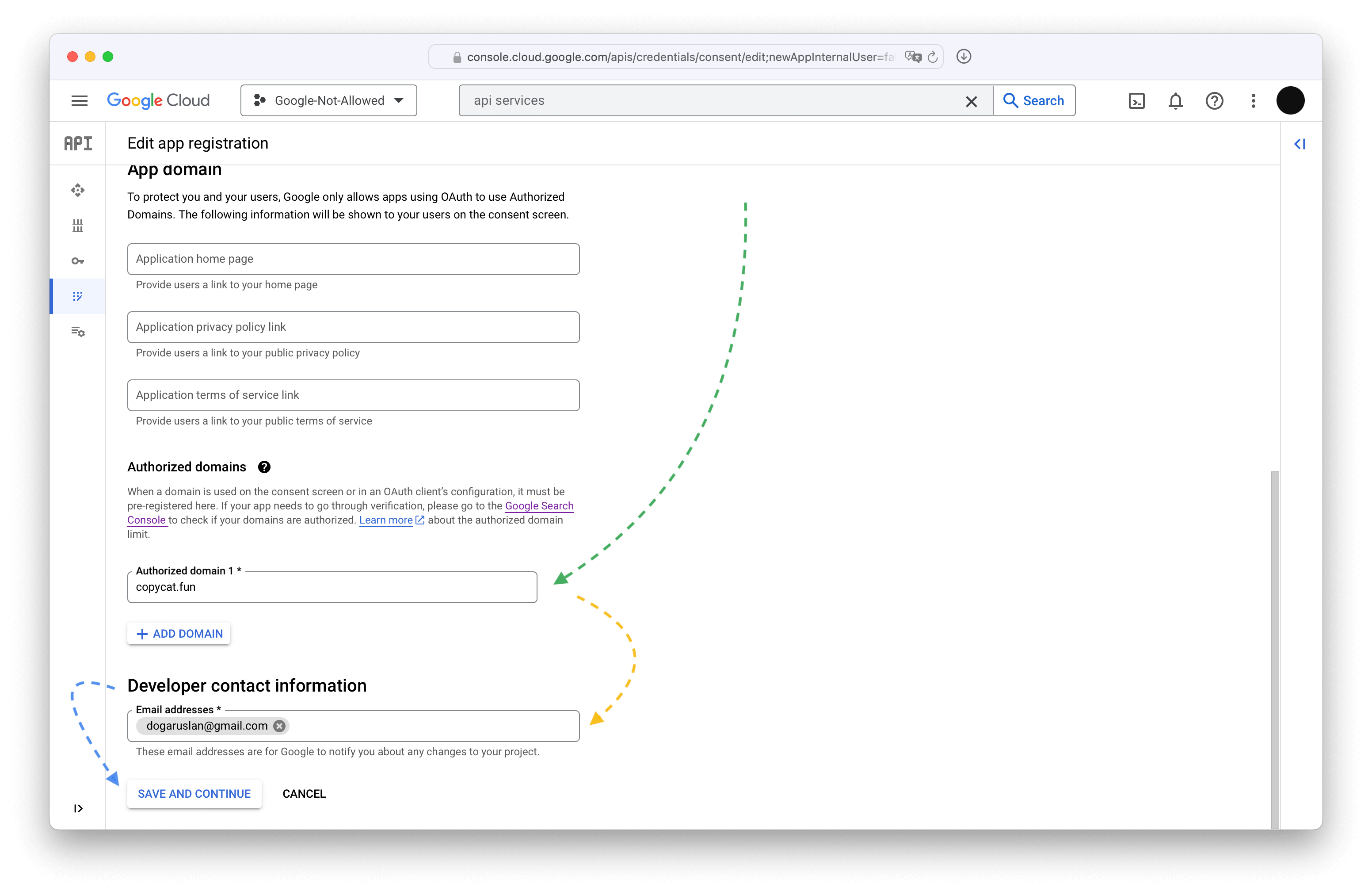
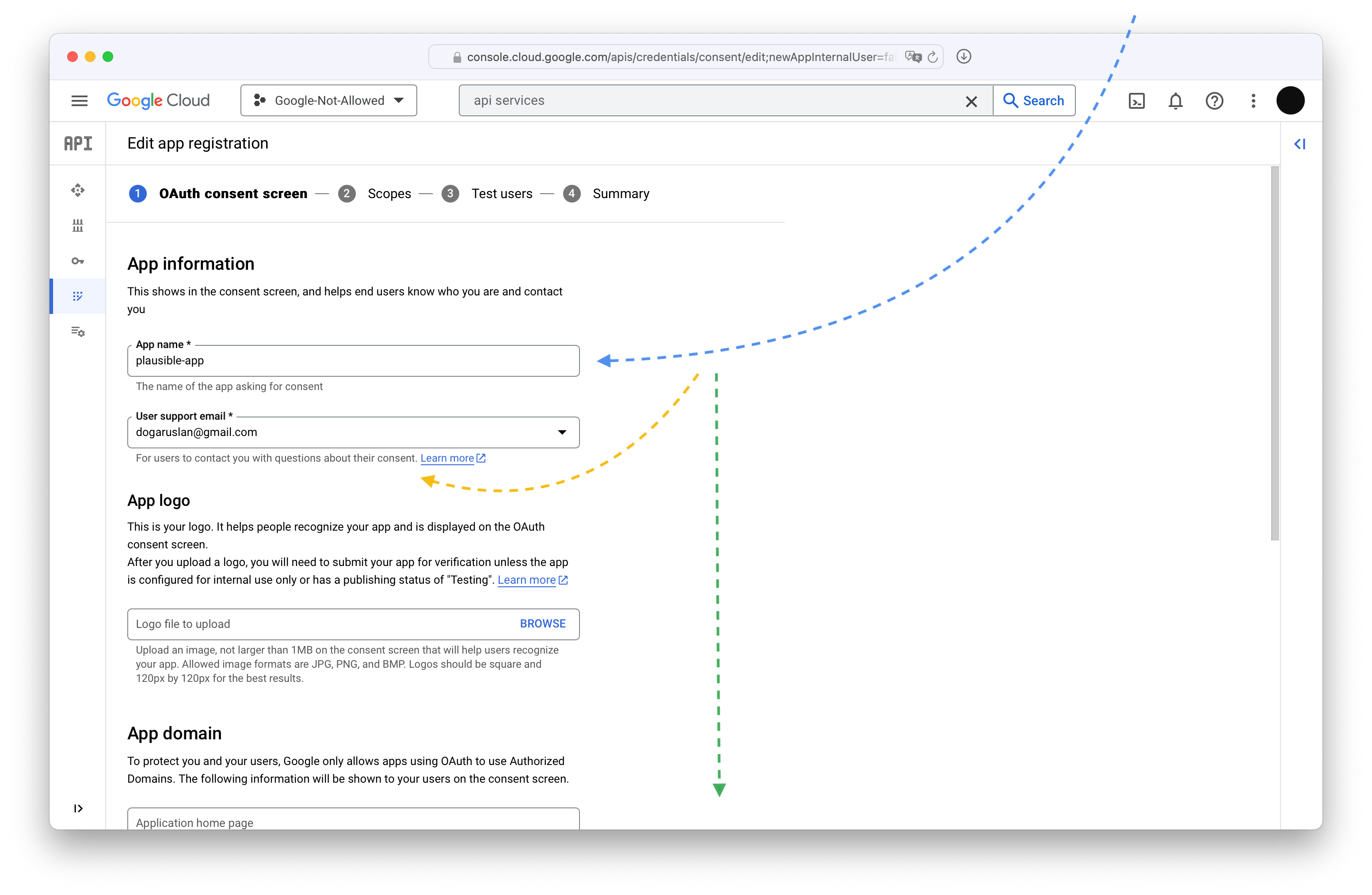 Scroll down -- skipping optional fields -- and type in your domain name and contact information (again).
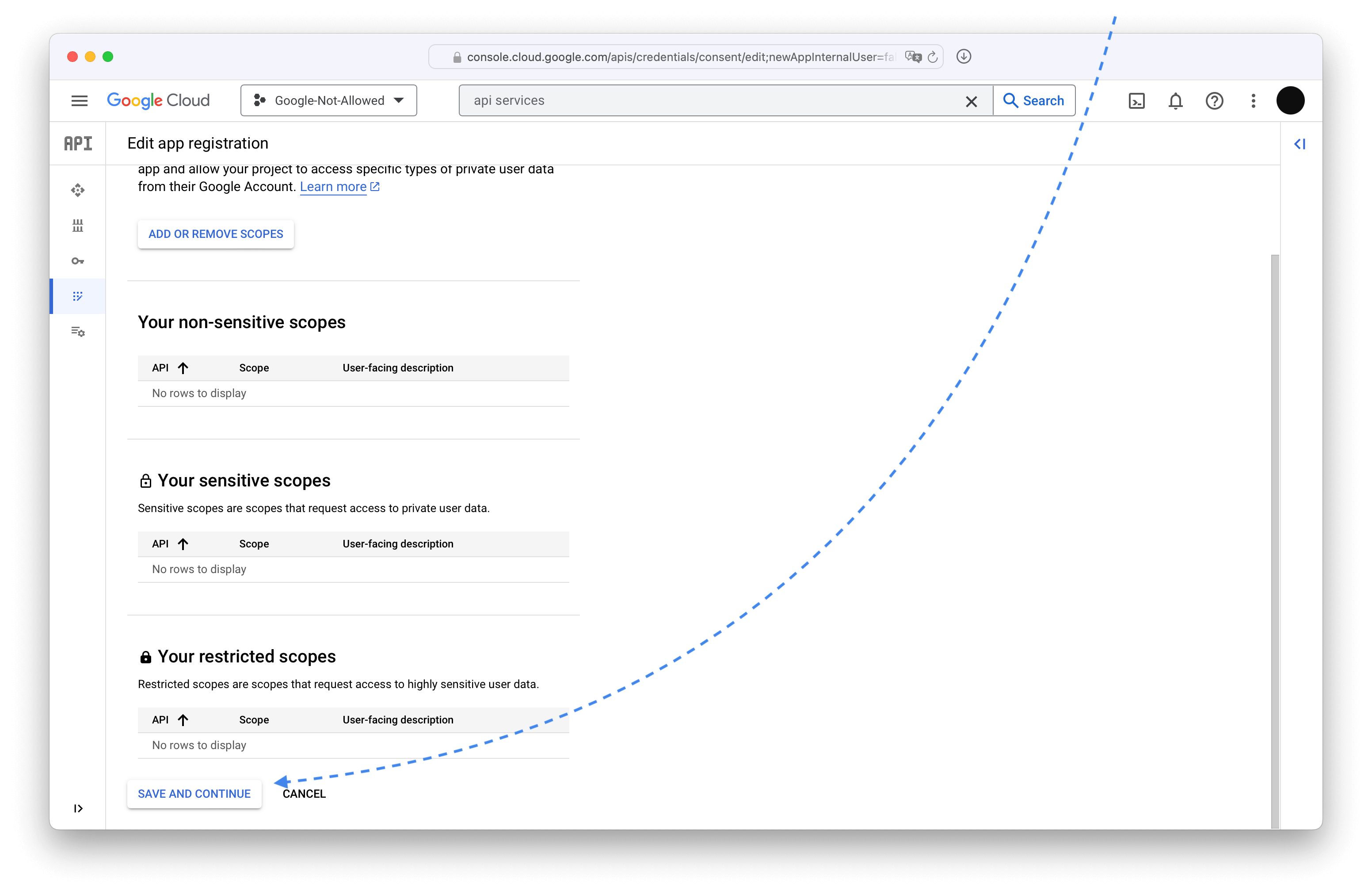
 Skip the scopes.
 Pick yourself as the test user, Google might complain about it but it works.
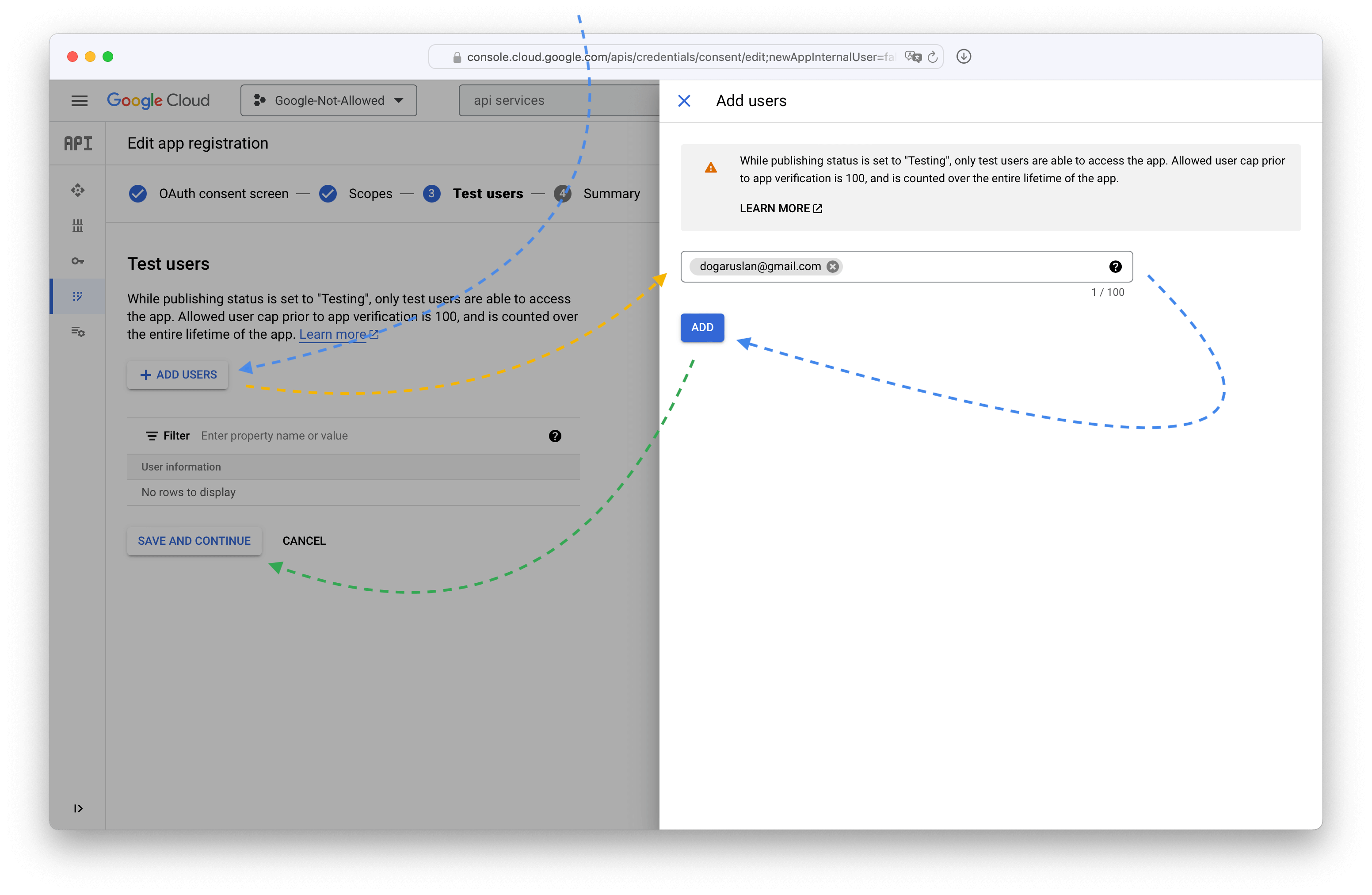 Click the final Save and continue and you have the OAuth application registered.
#### Issue an OAuth client and key for that application
Pick Credentials in the sidebar.
Click the final Save and continue and you have the OAuth application registered.
#### Issue an OAuth client and key for that application
Pick Credentials in the sidebar.
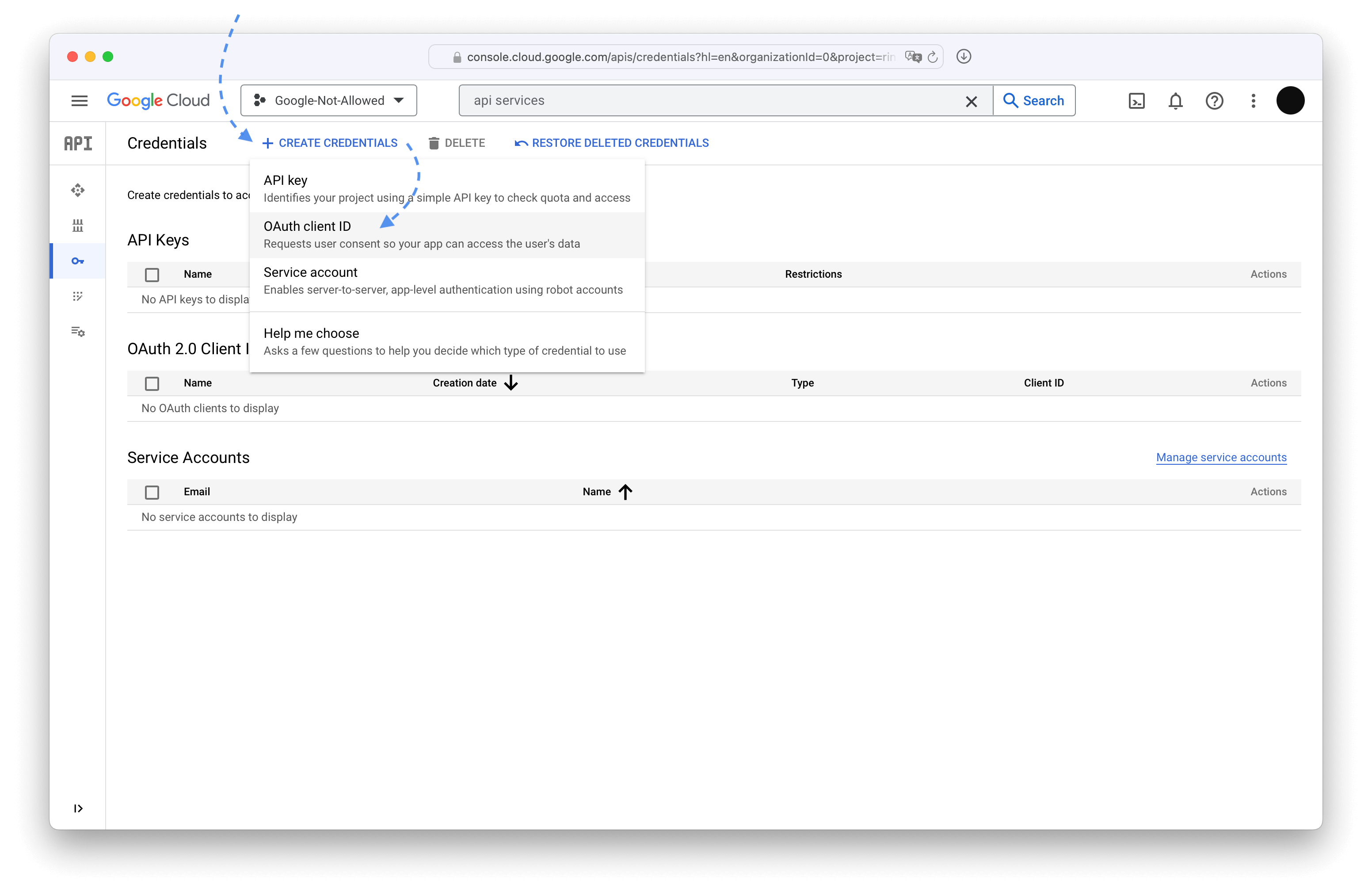
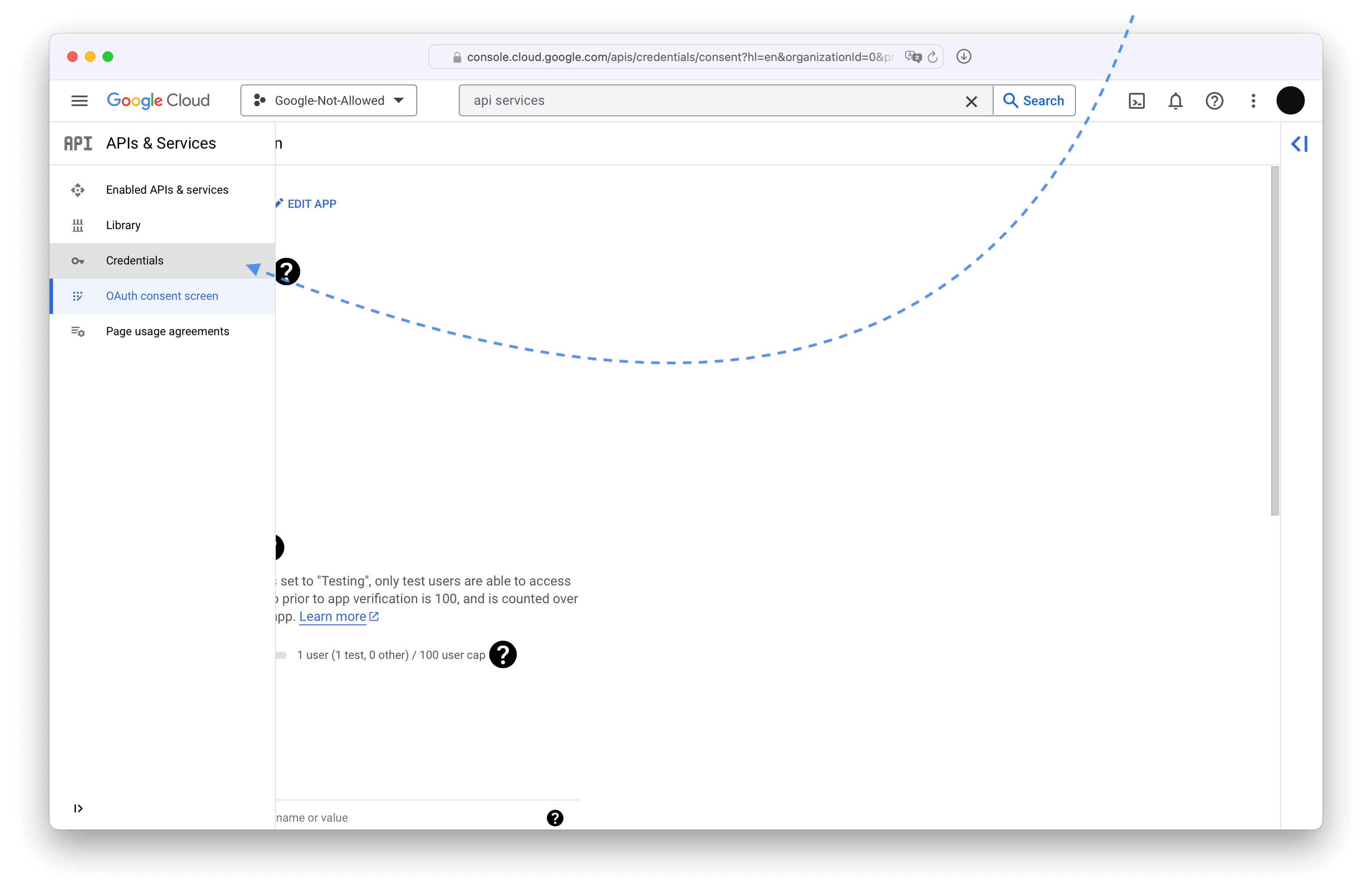 Click + Create credentials dropdown and select OAuth client ID
 Pick Web application for the application type, type the name for the client, and add the redirect URL.
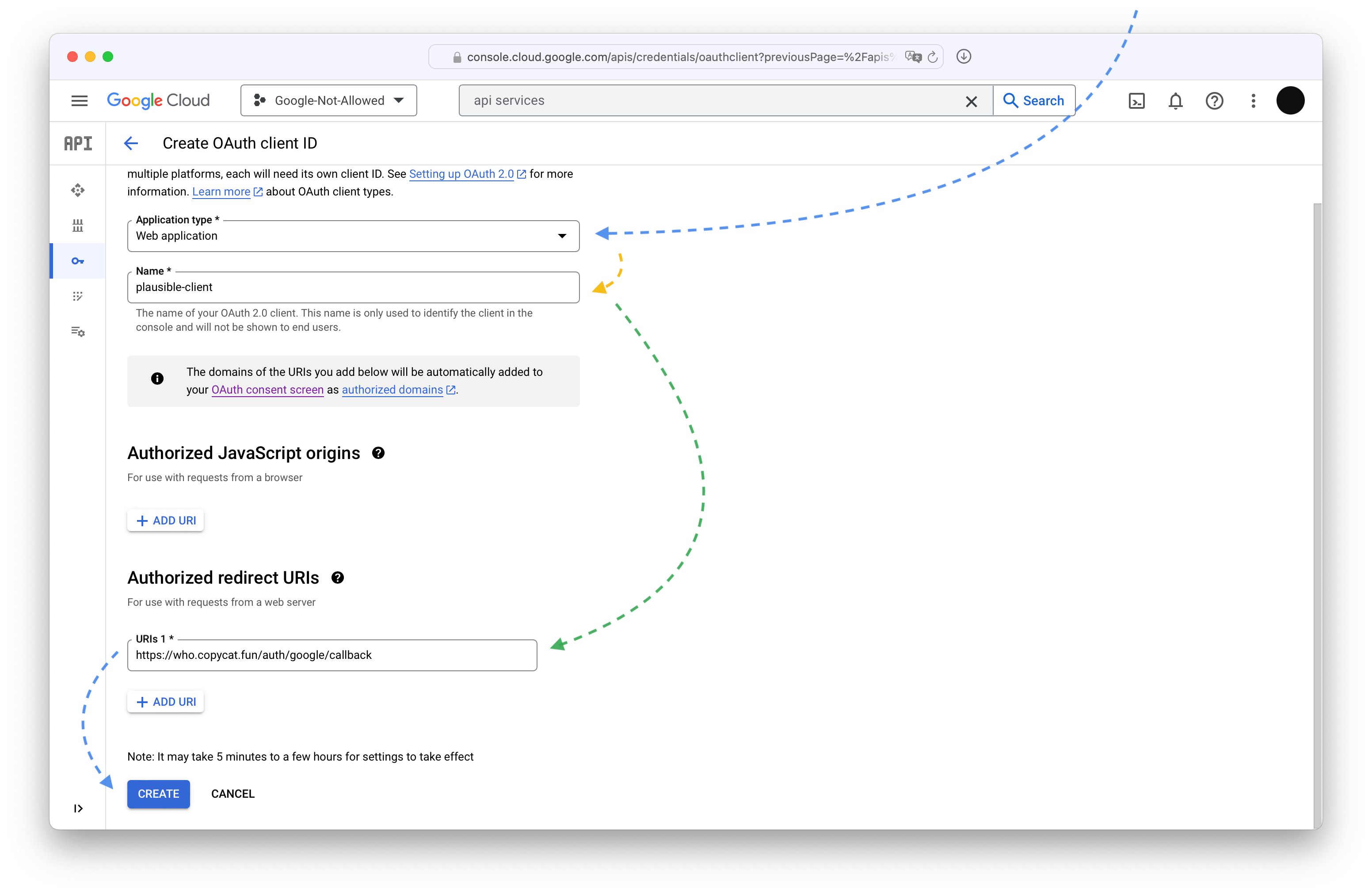 That redirect URL should be `/auth/google/callback` on your Plausible instance's [BASE_URL](https://github.com/plausible/hosting/blob/bb6decee4d33ccf84eb235b6053443a01498db53/plausible-conf.env#L1)
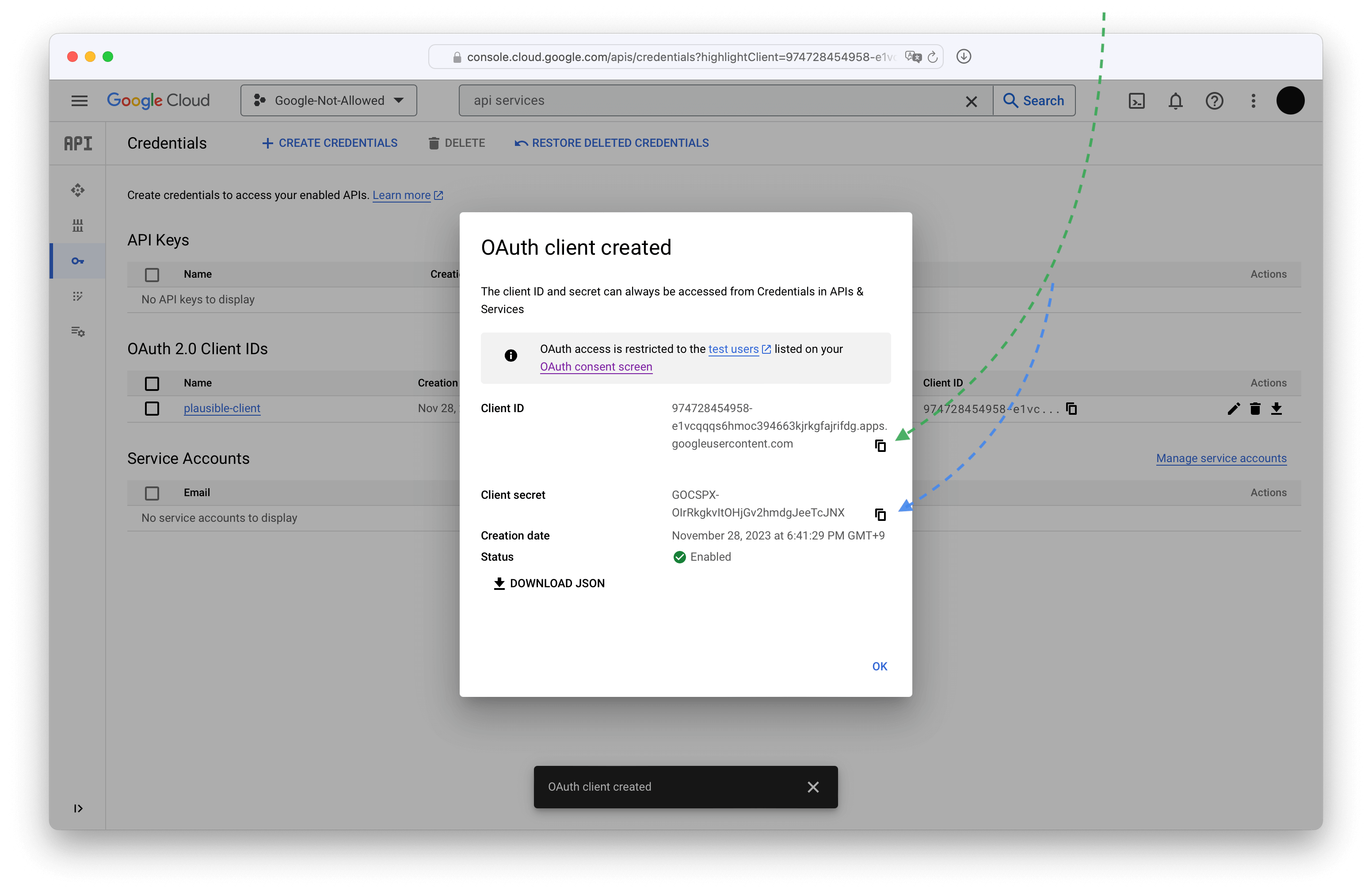 Copy these to your [plausible-conf.env](https://github.com/plausible/hosting/blob/master/plausible-conf.env) and make sure to recreate the `plausible` container since the ENV vars provided on startup get "baked in"
plausible-conf.env
```env
GOOGLE_CLIENT_ID=974728454958-e1vcqqqs6hmoc394663kjrkgfajrifdg.apps.googleusercontent.com
GOOGLE_CLIENT_SECRET=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
```
console
```console
$ docker compose stop plausible
[+] Running 1/1
⠿ Container hosting-plausible-1 Stopped
$ docker compose rm plausible
? Going to remove hosting-plausible-1 Yes
[+] Running 1/0
⠿ Container hosting-plausible-1 Removed
$ docker compose -f docker-compose.yml -f reverse-proxy/docker-compose.caddy-gen.yml up -d
[+] Running 4/4
✔ Container hosting-plausible_events_db-1 Running 0.0s
✔ Container hosting-plausible_db-1 Running 0.0s
✔ Container hosting-plausible-1 Started 1.2s
✔ Container caddy-gen Running 0.0s
[+] Running 3/3
⠿ Container hosting-plausible_db-1 Healthy 0.5s
⠿ Container hosting-plausible_events_db-1 Healthy 0.5s
⠿ Container hosting-plausible-1 Started
$ docker compose exec plausible sh -c 'echo $GOOGLE_CLIENT_ID'
974728454958-e1vcqqqs6hmoc394663kjrkgfajrifdg.apps.googleusercontent.com
```
> You can omit -f docker-compose.yml -f reverse-proxy/docker-compose.caddy-gen.yml if you are not using Caddy
#### Verify the chosen domain on Google Search console
Did you notice that during OAuth application registratation there was a note about Authorized URLs saying that they need to be verified? Nevermind, we are doing it now.
Start by navigating to [Google Search Console page.](http://search.google.com/u/1/search-console/welcome)
Once there, either ensure that you've already verified your domain by checking the properties in the Select property dropdown on the left or pick one of the two ways to verify it. I only have screenshots for the "Domain" type so that's what I'm picking.
Copy these to your [plausible-conf.env](https://github.com/plausible/hosting/blob/master/plausible-conf.env) and make sure to recreate the `plausible` container since the ENV vars provided on startup get "baked in"
plausible-conf.env
```env
GOOGLE_CLIENT_ID=974728454958-e1vcqqqs6hmoc394663kjrkgfajrifdg.apps.googleusercontent.com
GOOGLE_CLIENT_SECRET=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
```
console
```console
$ docker compose stop plausible
[+] Running 1/1
⠿ Container hosting-plausible-1 Stopped
$ docker compose rm plausible
? Going to remove hosting-plausible-1 Yes
[+] Running 1/0
⠿ Container hosting-plausible-1 Removed
$ docker compose -f docker-compose.yml -f reverse-proxy/docker-compose.caddy-gen.yml up -d
[+] Running 4/4
✔ Container hosting-plausible_events_db-1 Running 0.0s
✔ Container hosting-plausible_db-1 Running 0.0s
✔ Container hosting-plausible-1 Started 1.2s
✔ Container caddy-gen Running 0.0s
[+] Running 3/3
⠿ Container hosting-plausible_db-1 Healthy 0.5s
⠿ Container hosting-plausible_events_db-1 Healthy 0.5s
⠿ Container hosting-plausible-1 Started
$ docker compose exec plausible sh -c 'echo $GOOGLE_CLIENT_ID'
974728454958-e1vcqqqs6hmoc394663kjrkgfajrifdg.apps.googleusercontent.com
```
> You can omit -f docker-compose.yml -f reverse-proxy/docker-compose.caddy-gen.yml if you are not using Caddy
#### Verify the chosen domain on Google Search console
Did you notice that during OAuth application registratation there was a note about Authorized URLs saying that they need to be verified? Nevermind, we are doing it now.
Start by navigating to [Google Search Console page.](http://search.google.com/u/1/search-console/welcome)
Once there, either ensure that you've already verified your domain by checking the properties in the Select property dropdown on the left or pick one of the two ways to verify it. I only have screenshots for the "Domain" type so that's what I'm picking.
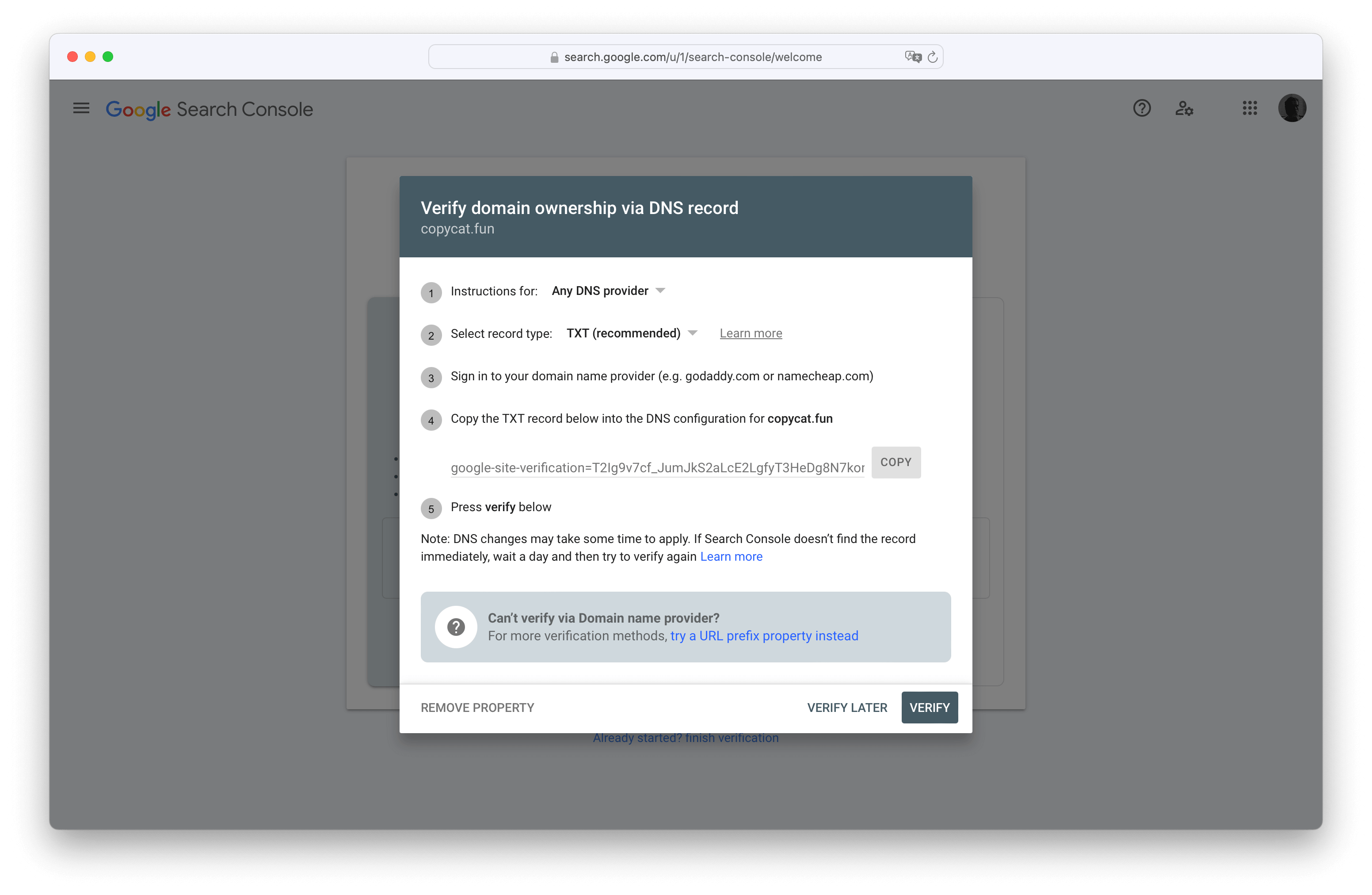
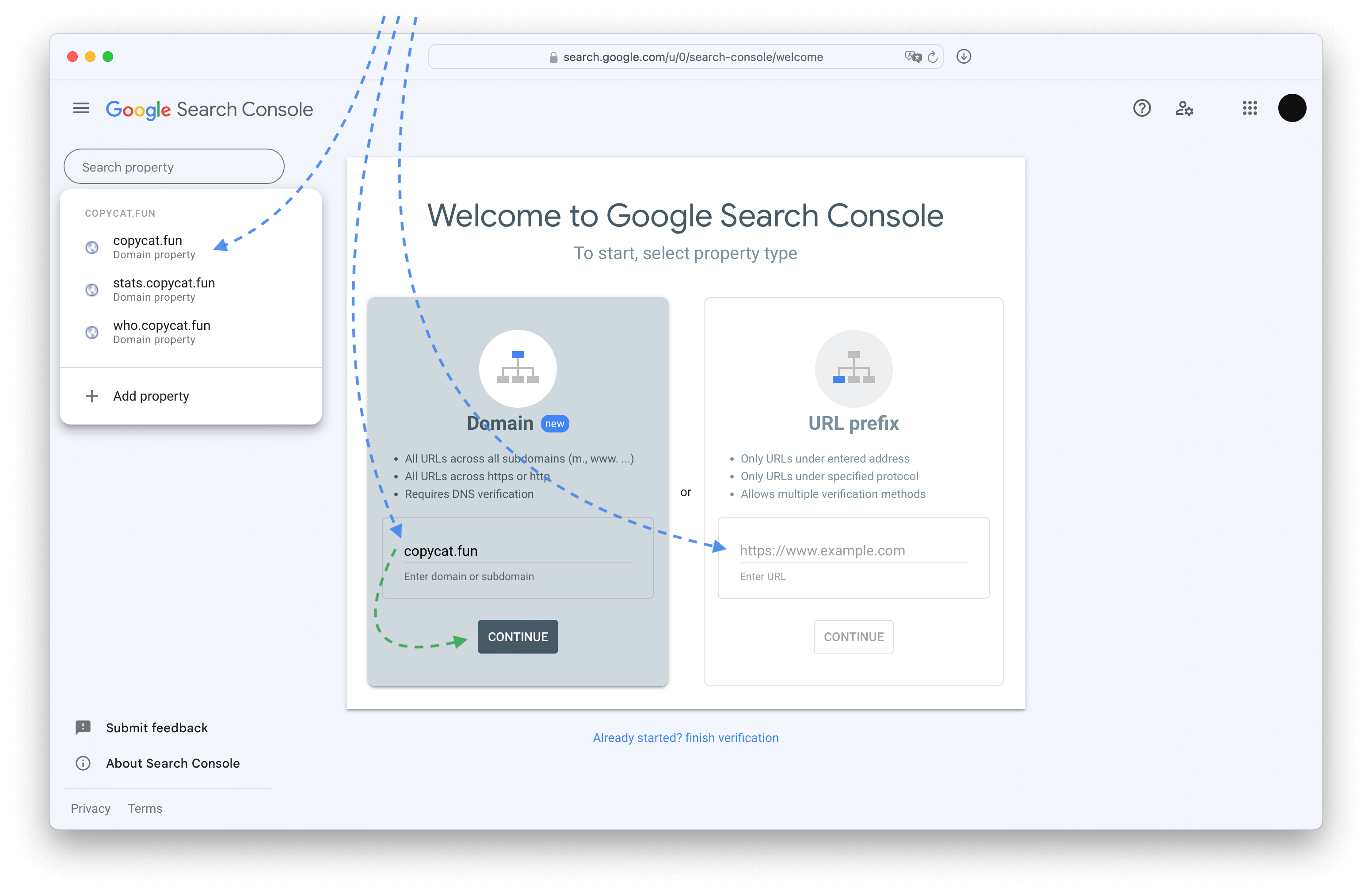 Whichever you pick, just follow the instruction in the pop-up, they are good.
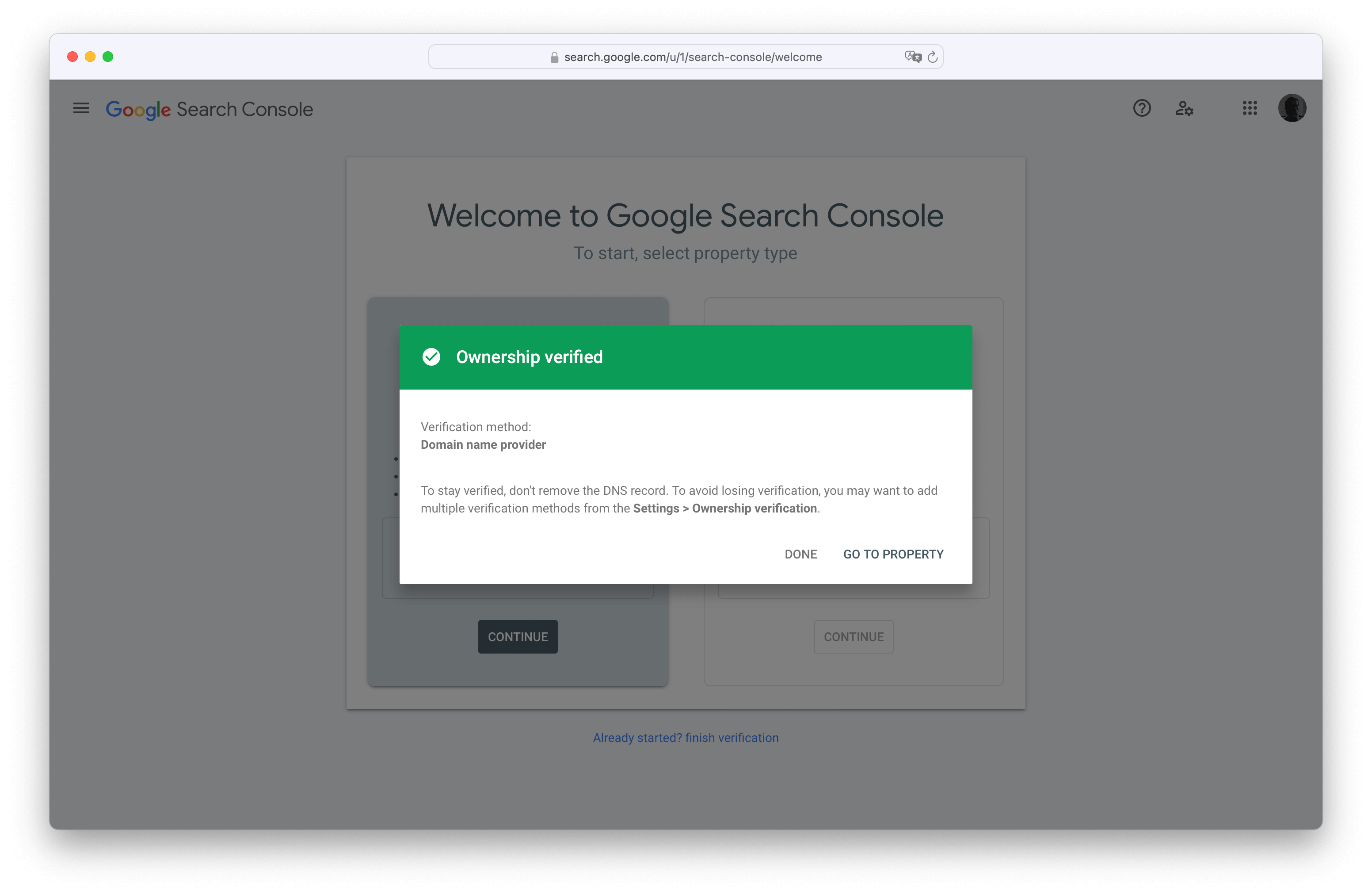
 Success looks like this.
 With that, you are ready to integrate Plausible with Google Search and import Universal Analytics data. You can do both, neither, and anything in between.
### Integrate with Google Search
#### Enable APIs for Google Search integration
Go back to [Google Cloud,](https://console.cloud.google.com) ensure you have the correct project selected, and search for Google Search Console API
With that, you are ready to integrate Plausible with Google Search and import Universal Analytics data. You can do both, neither, and anything in between.
### Integrate with Google Search
#### Enable APIs for Google Search integration
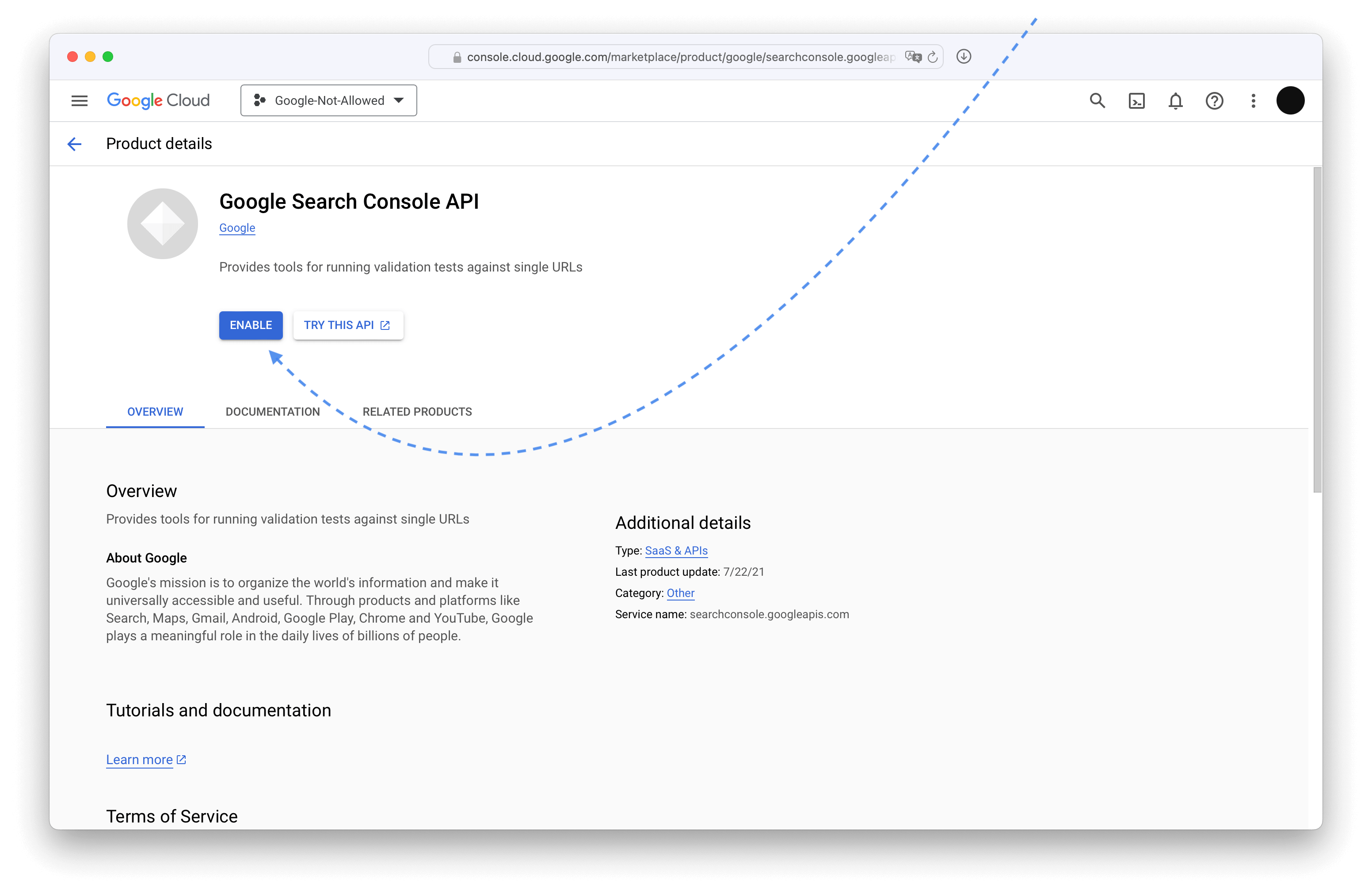
Go back to [Google Cloud,](https://console.cloud.google.com) ensure you have the correct project selected, and search for Google Search Console API
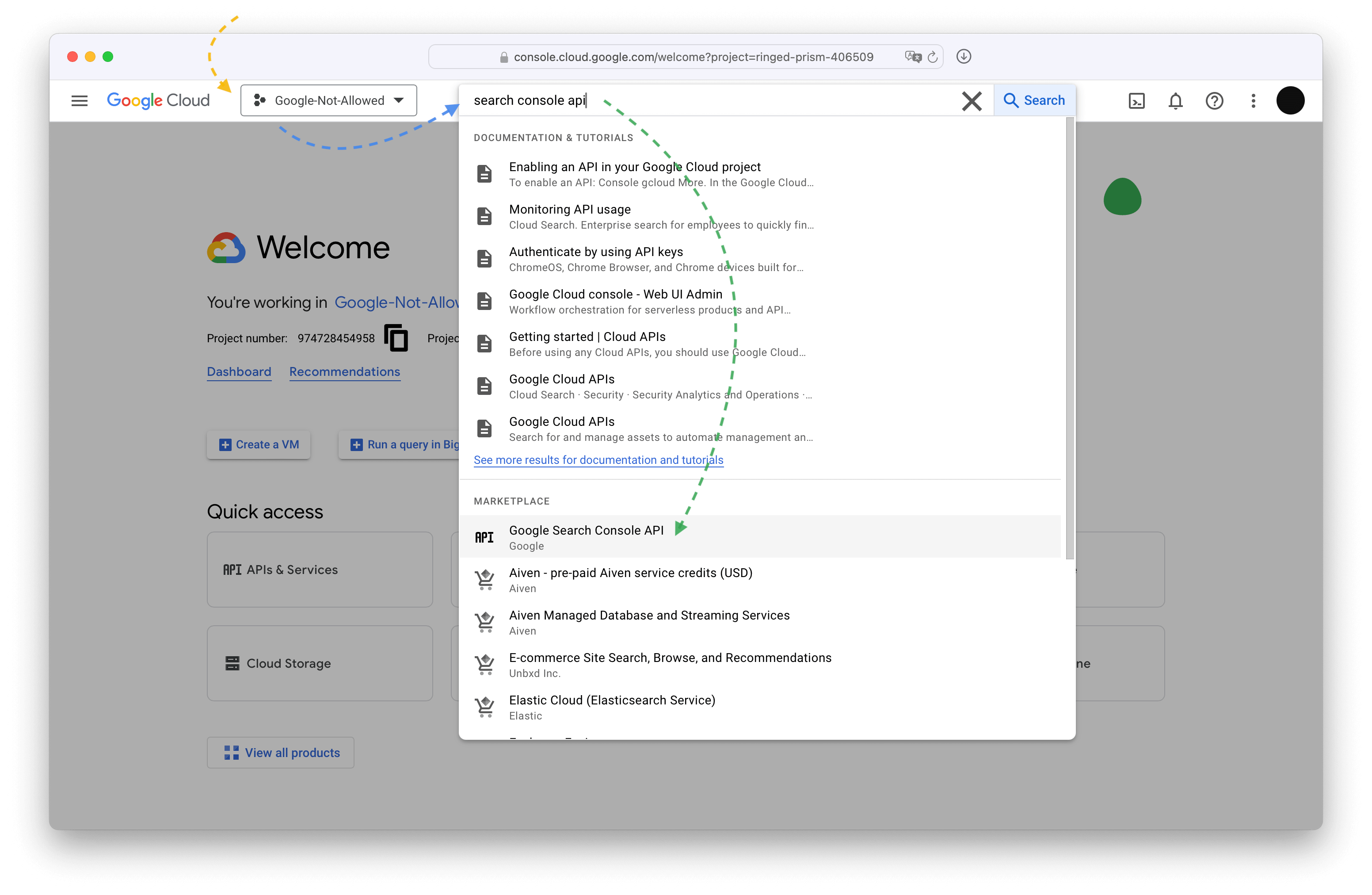 Enable it.
 #### Link it with Plausible
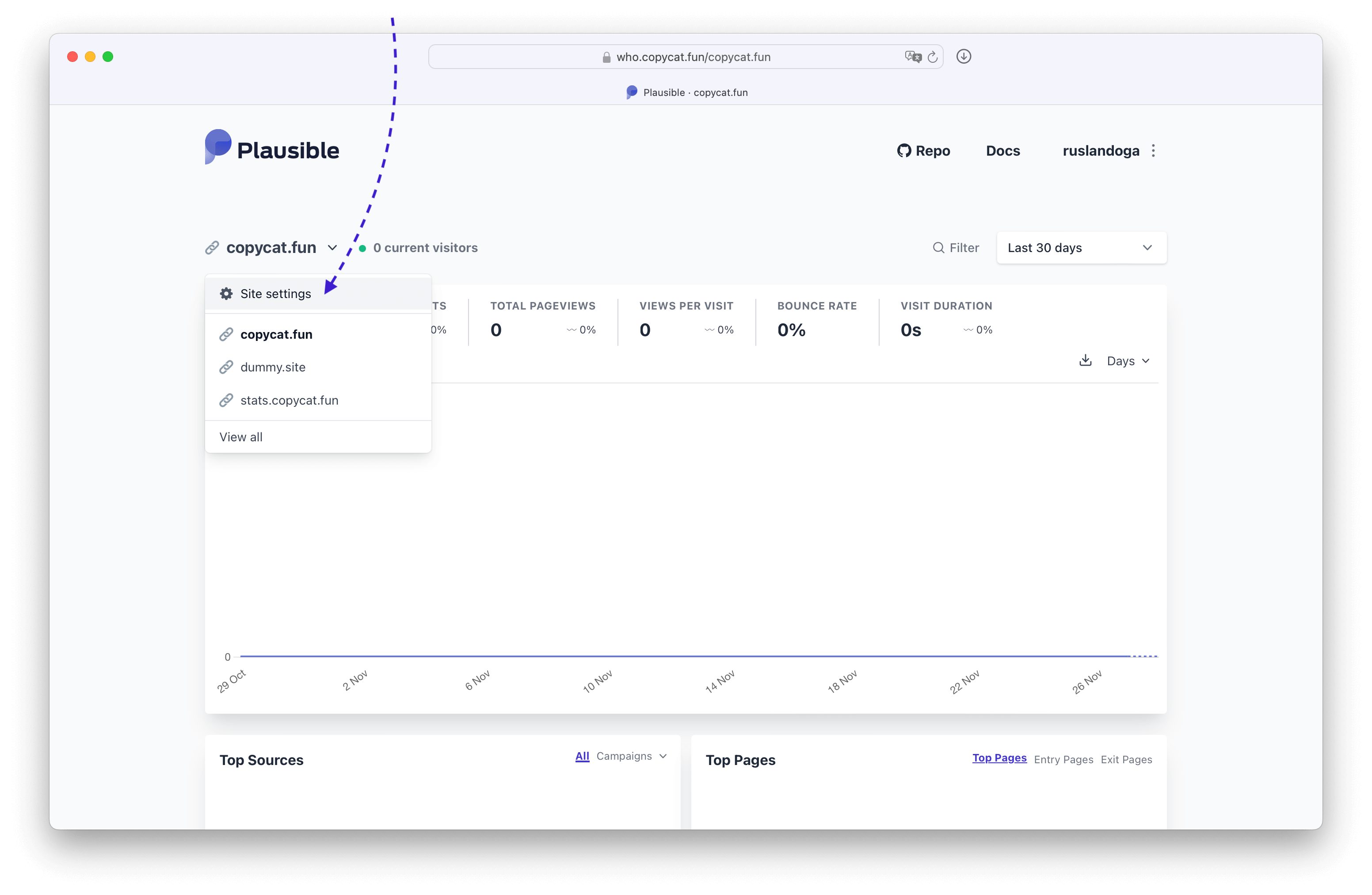
Go to the site settings on your Plausible dashboard.
#### Link it with Plausible
Go to the site settings on your Plausible dashboard.
 In the settings select Search Console and press Continue with Google
> If you see a warning instead, that means you haven't set the GOOGLE_CLIENT_ID and GOOGLE_CLIENT_SECRET environment variables [correctly.](#issue-an-oauth-client-and-key-for-that-application)
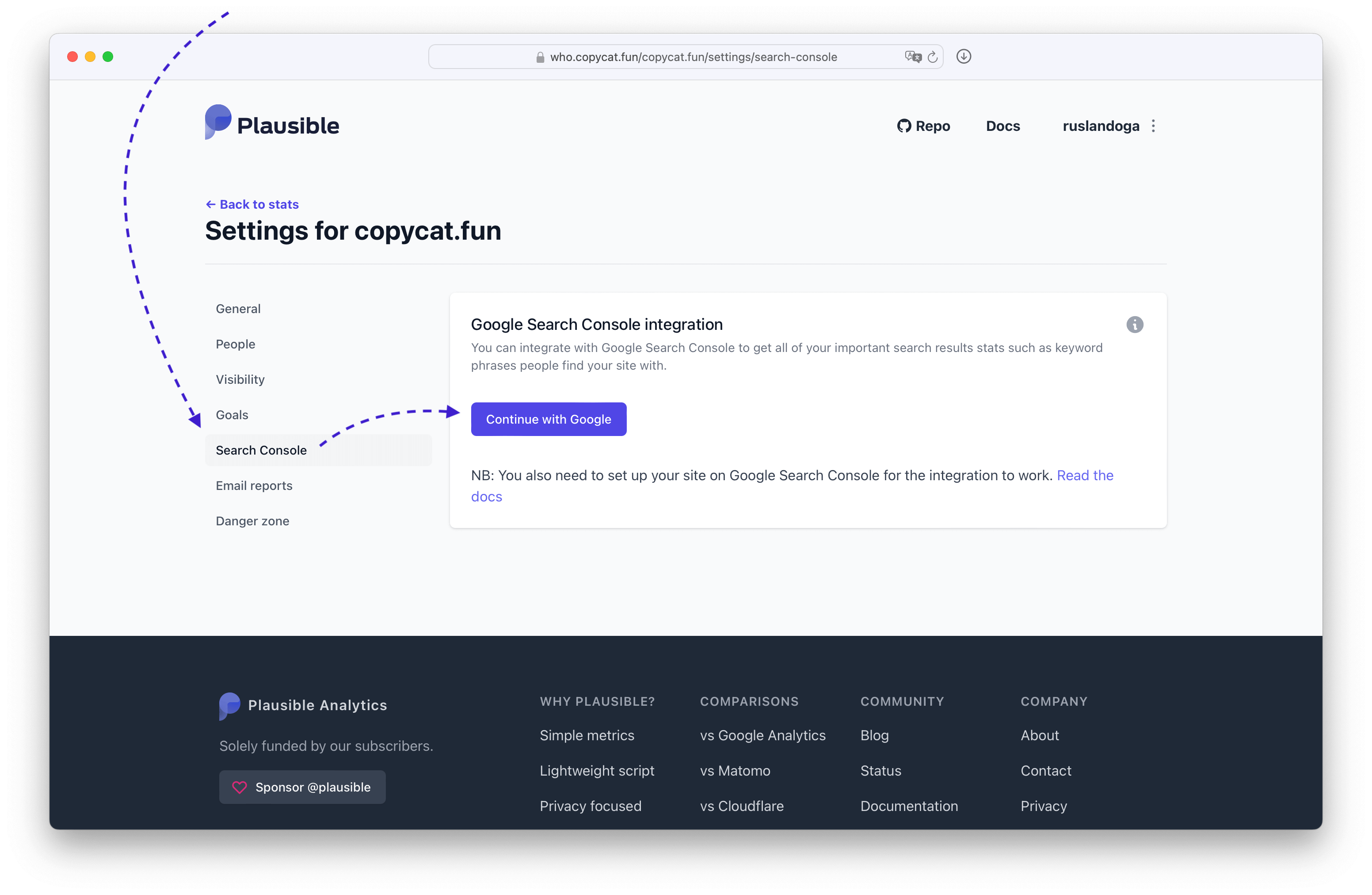
In the settings select Search Console and press Continue with Google
> If you see a warning instead, that means you haven't set the GOOGLE_CLIENT_ID and GOOGLE_CLIENT_SECRET environment variables [correctly.](#issue-an-oauth-client-and-key-for-that-application)
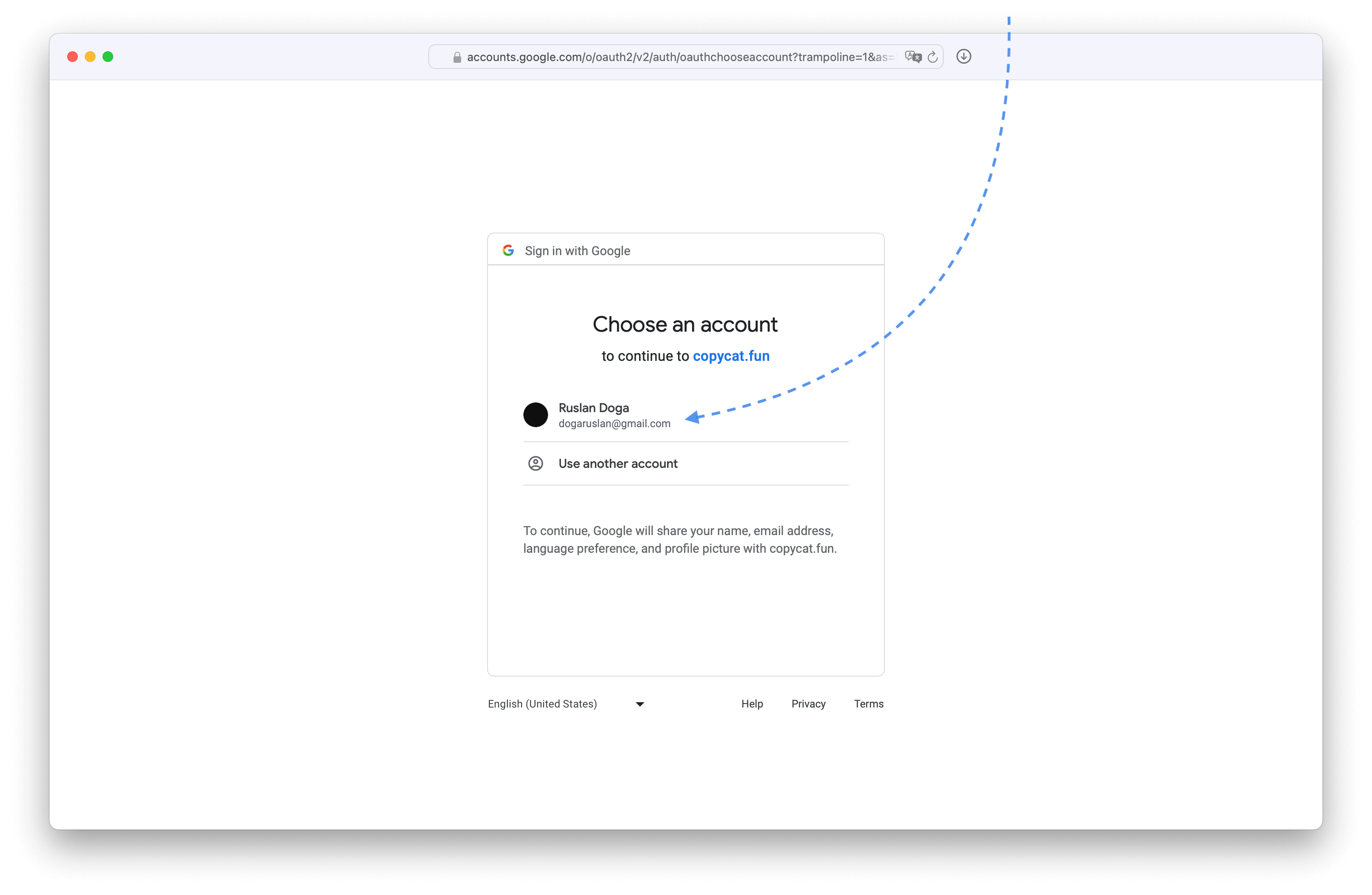
 Choose the account that you added as the test user.
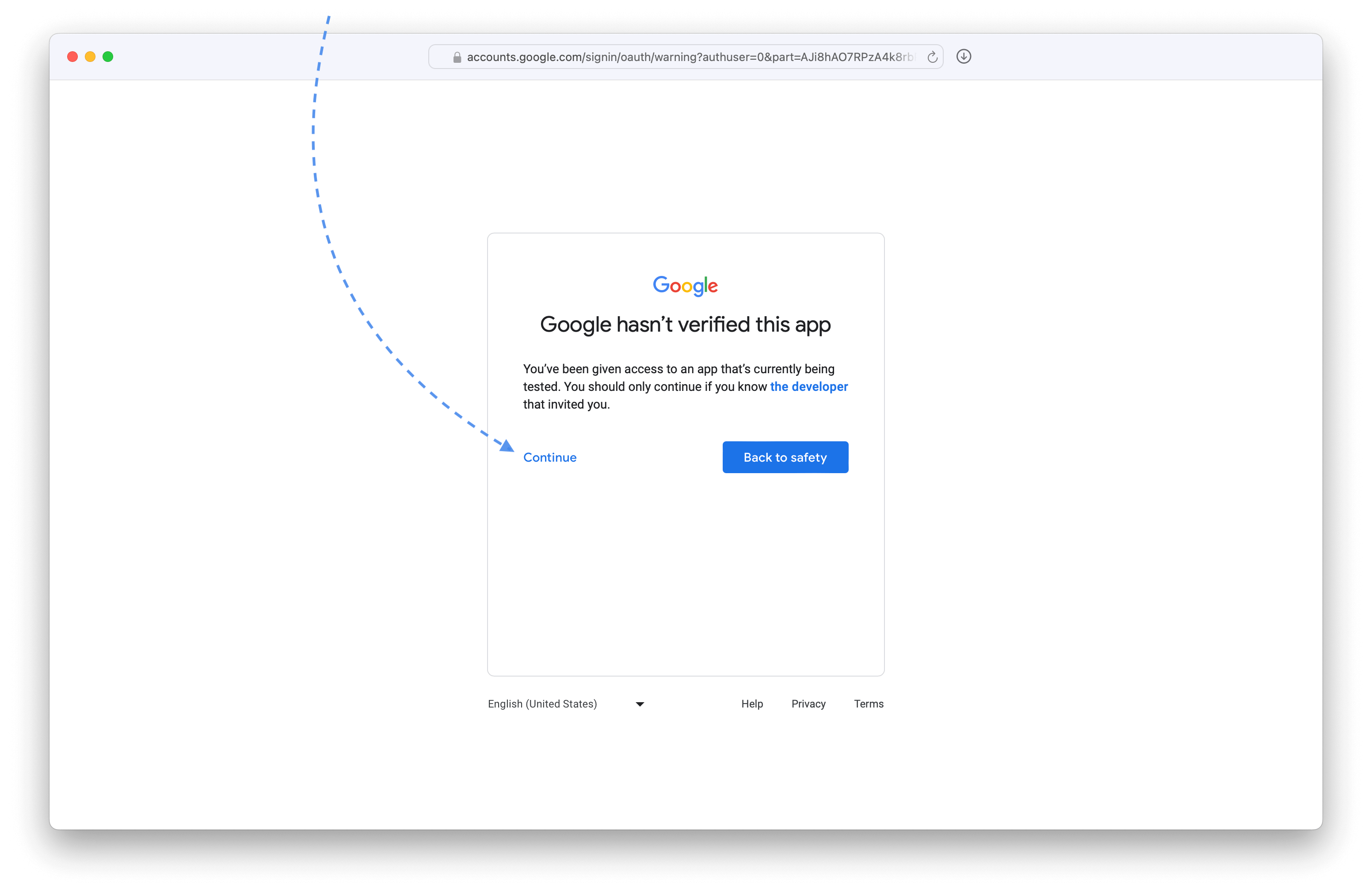
 Trust our own application.
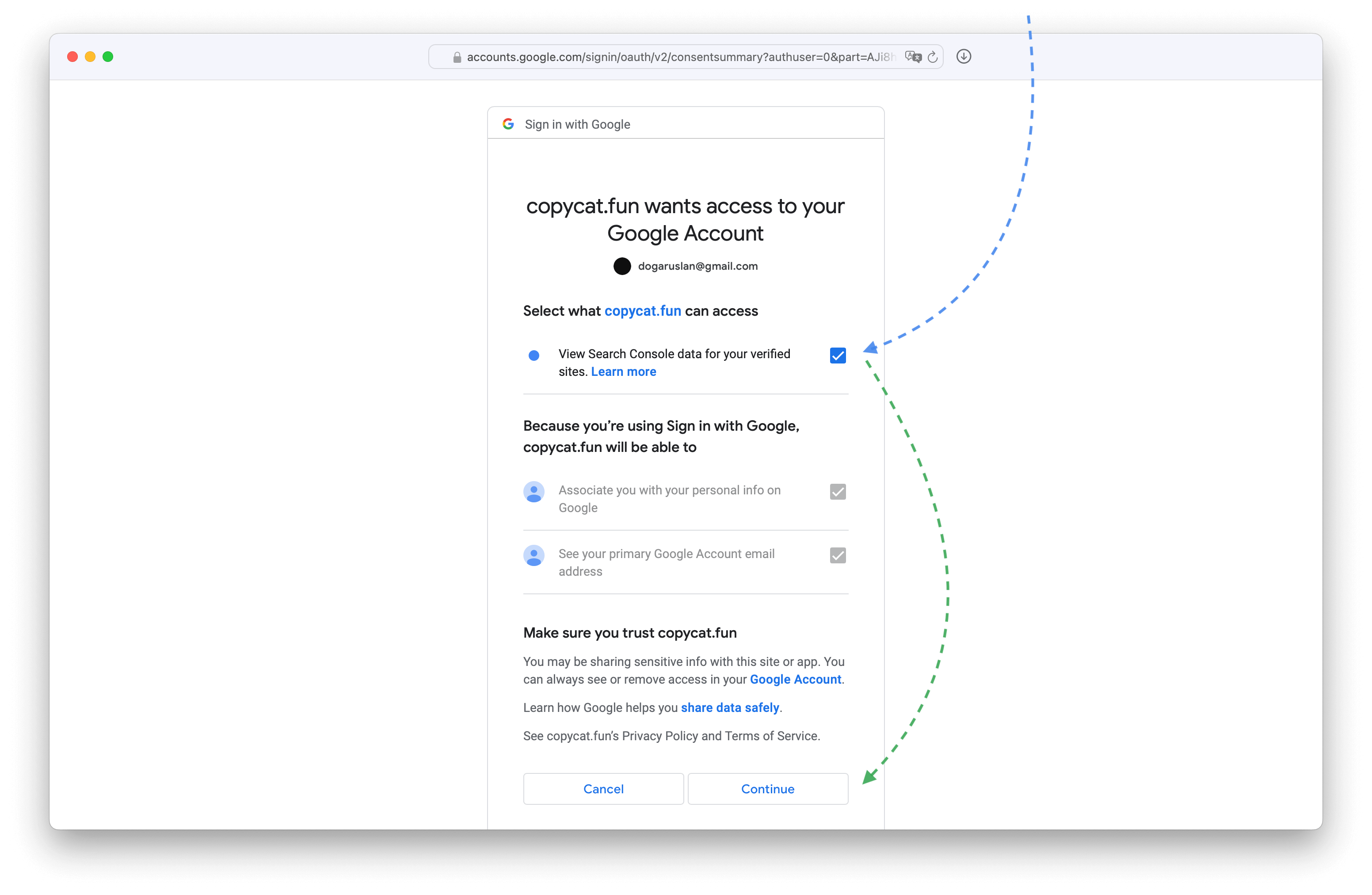
 Allow viewing Search Console data.
 Pick the property from Search Console.
 And now we should be able to drilldown into Google search terms like on [plausible.io](https://plausible.io/plausible.io/referrers/Google?source=Google)
### Import historical data from Universal Analytics
#### Enable APIs for exports on Google Cloud
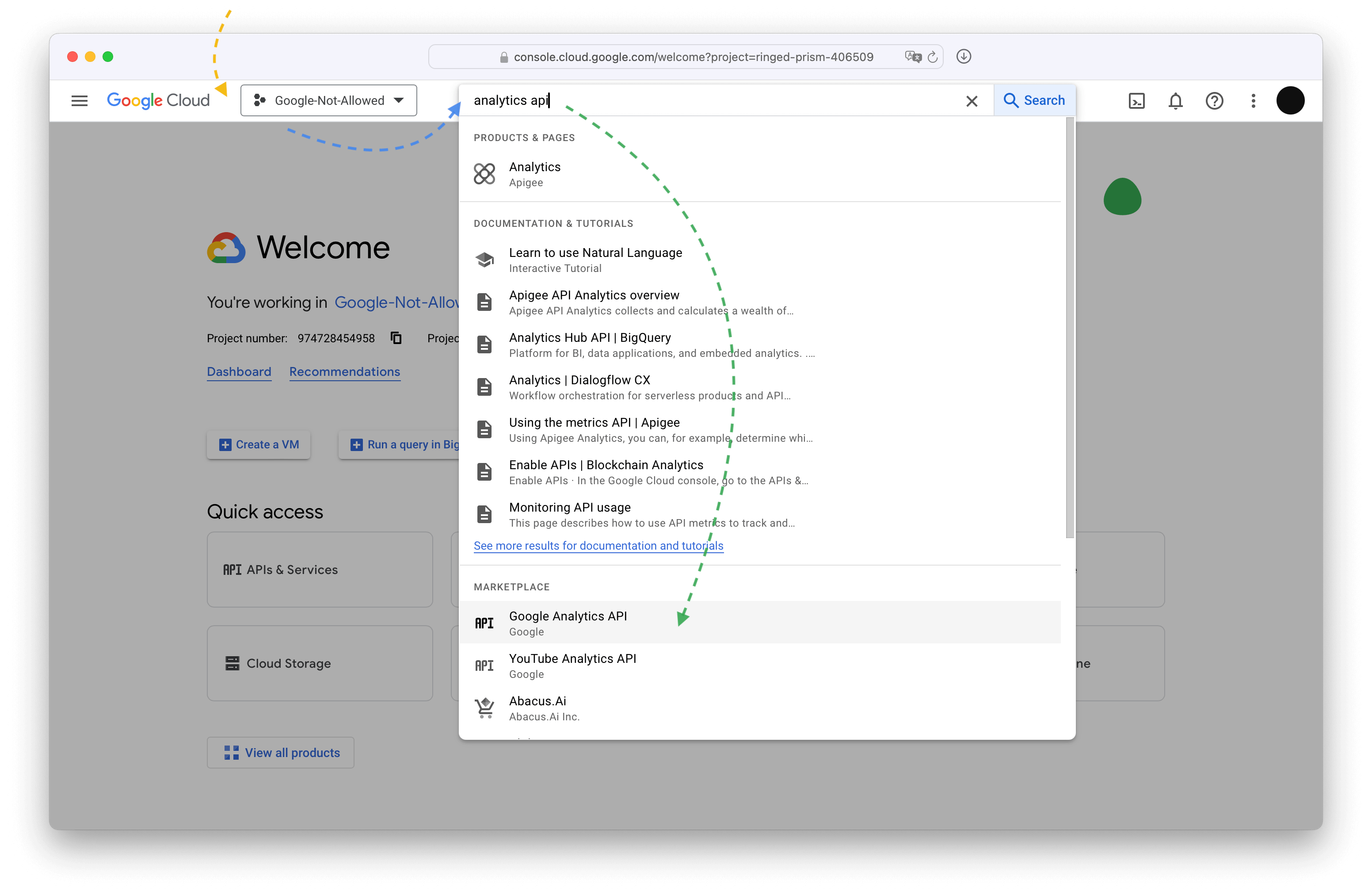
Go back to [Google Cloud,](https://console.cloud.google.com) ensure you have the correct project selected, and search for Google Analytics API
And now we should be able to drilldown into Google search terms like on [plausible.io](https://plausible.io/plausible.io/referrers/Google?source=Google)
### Import historical data from Universal Analytics
#### Enable APIs for exports on Google Cloud
Go back to [Google Cloud,](https://console.cloud.google.com) ensure you have the correct project selected, and search for Google Analytics API
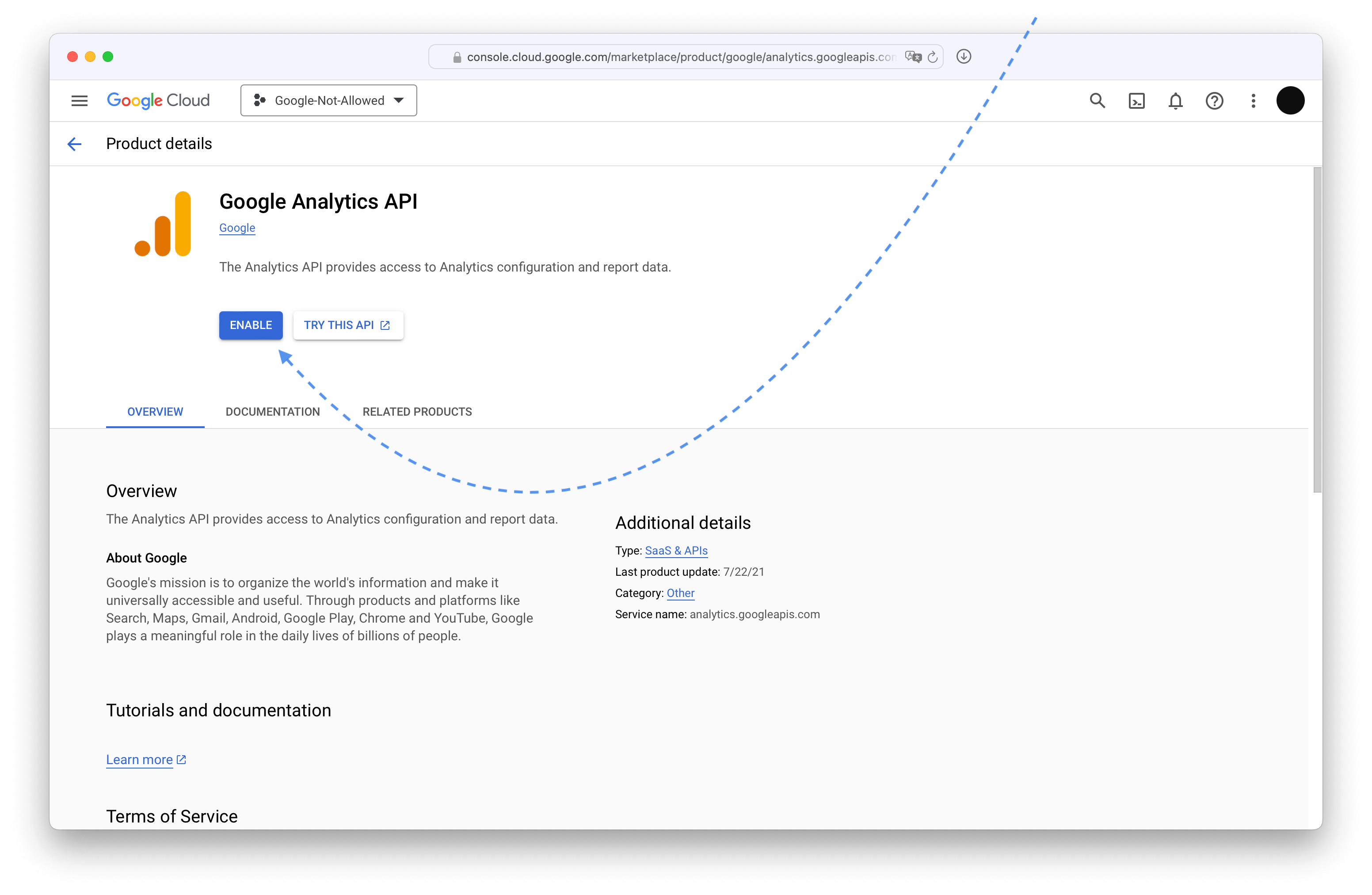
 Enable it.
 Next search for Google Analytics Reporting API
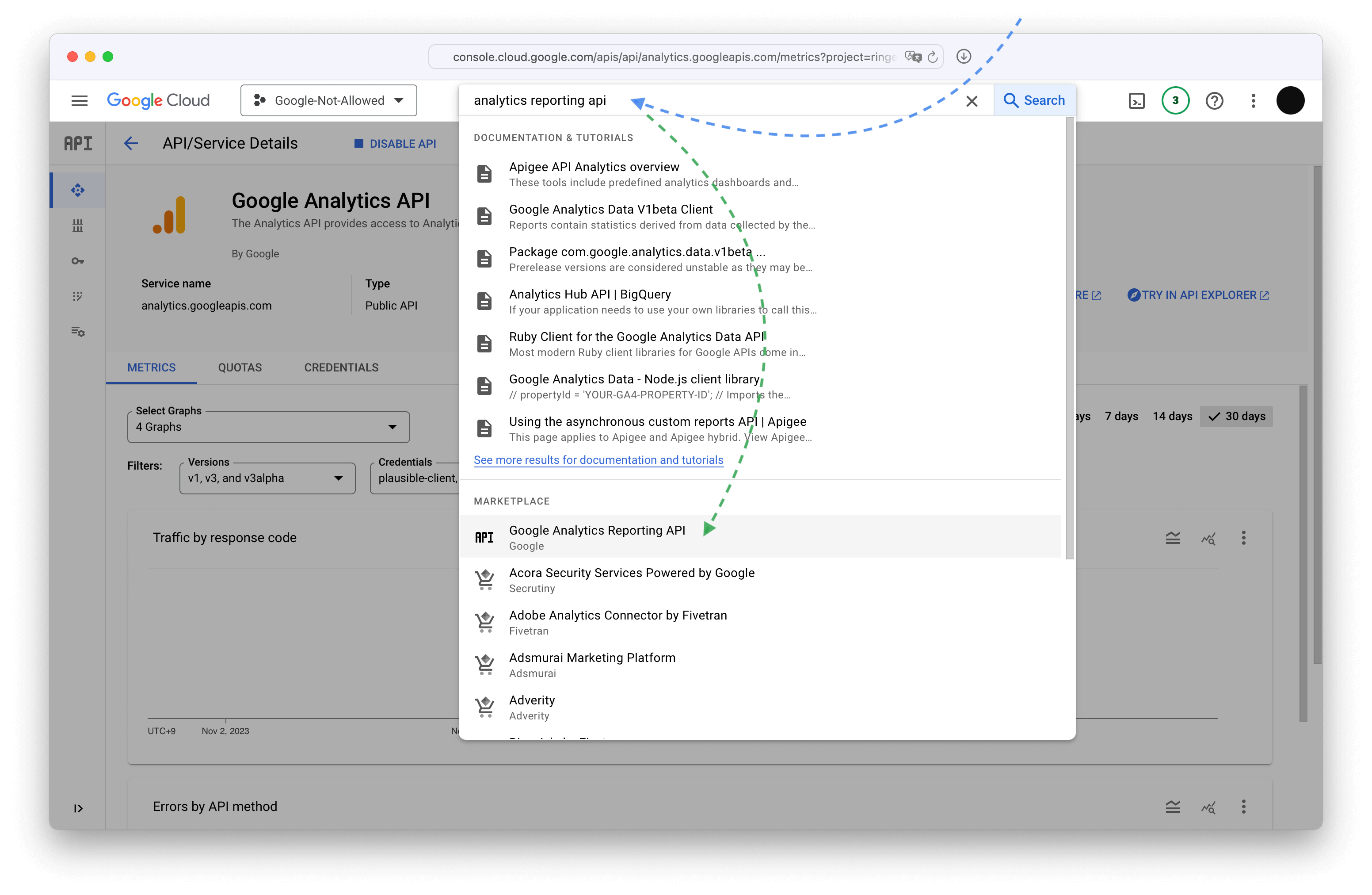 And enable it.
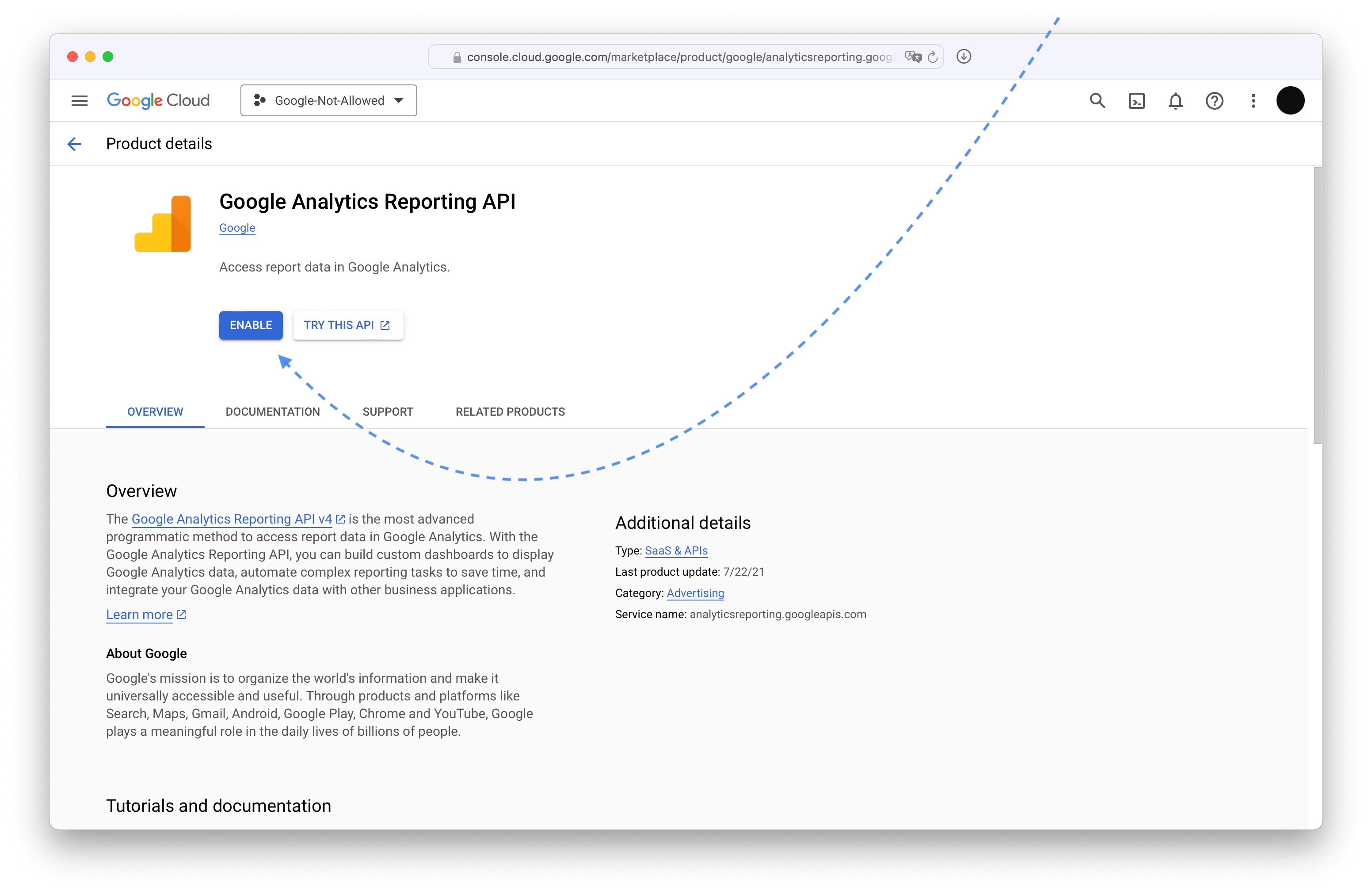 #### Import into Plausible
Go to the site settings on your Plausible dashboard.
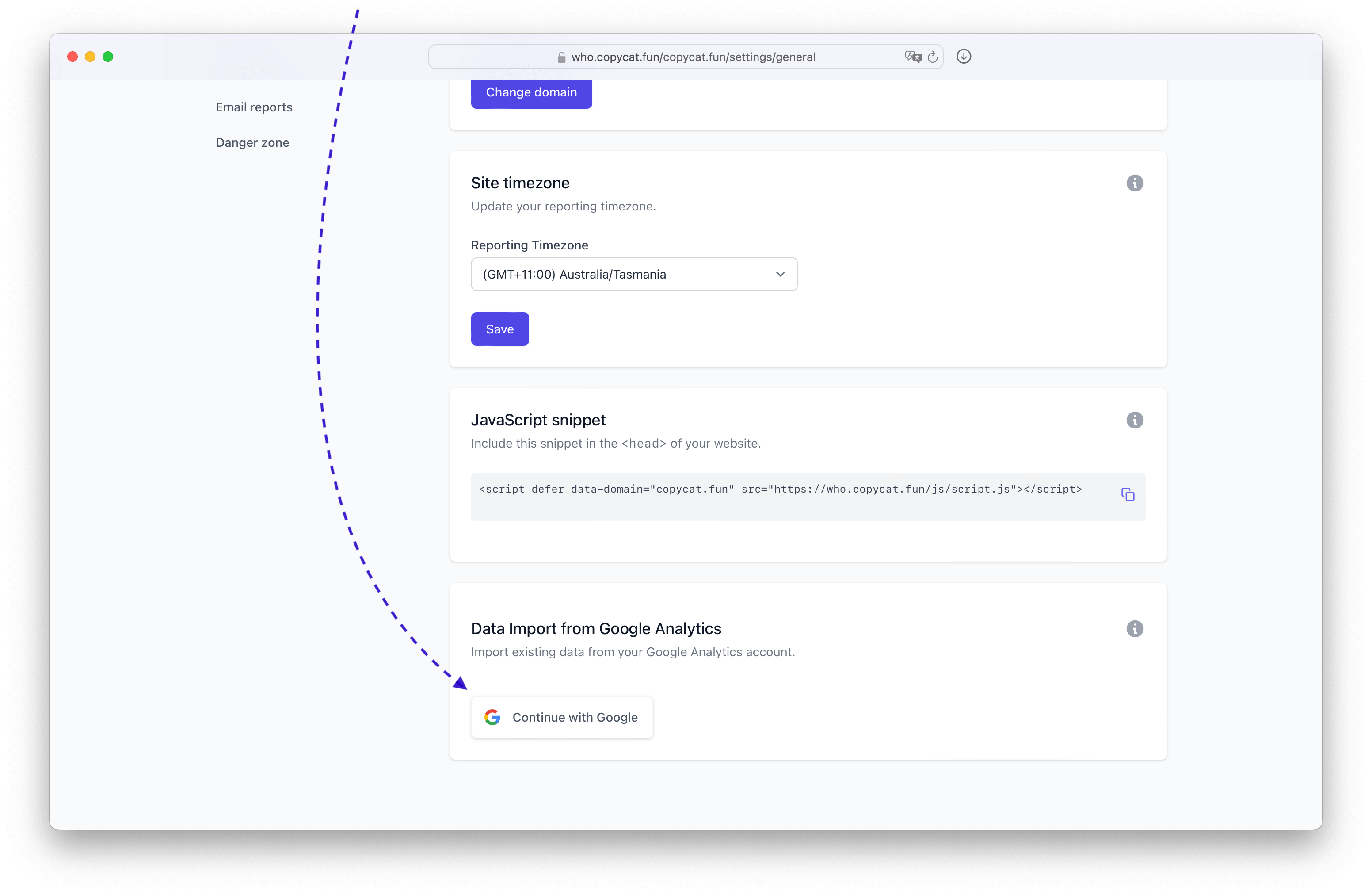
In the General settings section scroll down to Data Import from Google Analytics and press Continue with Google button.
> If you see a warning instead, that means you haven't set the GOOGLE_CLIENT_ID and GOOGLE_CLIENT_SECRET environment variables [correctly.](#issue-an-oauth-client-and-key-for-that-application)
#### Import into Plausible
Go to the site settings on your Plausible dashboard.
In the General settings section scroll down to Data Import from Google Analytics and press Continue with Google button.
> If you see a warning instead, that means you haven't set the GOOGLE_CLIENT_ID and GOOGLE_CLIENT_SECRET environment variables [correctly.](#issue-an-oauth-client-and-key-for-that-application)
 Choose the account that you added as the test user.
Trust our own application.
Pick the view to import and then follow the Plausible directions.
Choose the account that you added as the test user.
Trust our own application.
Pick the view to import and then follow the Plausible directions.
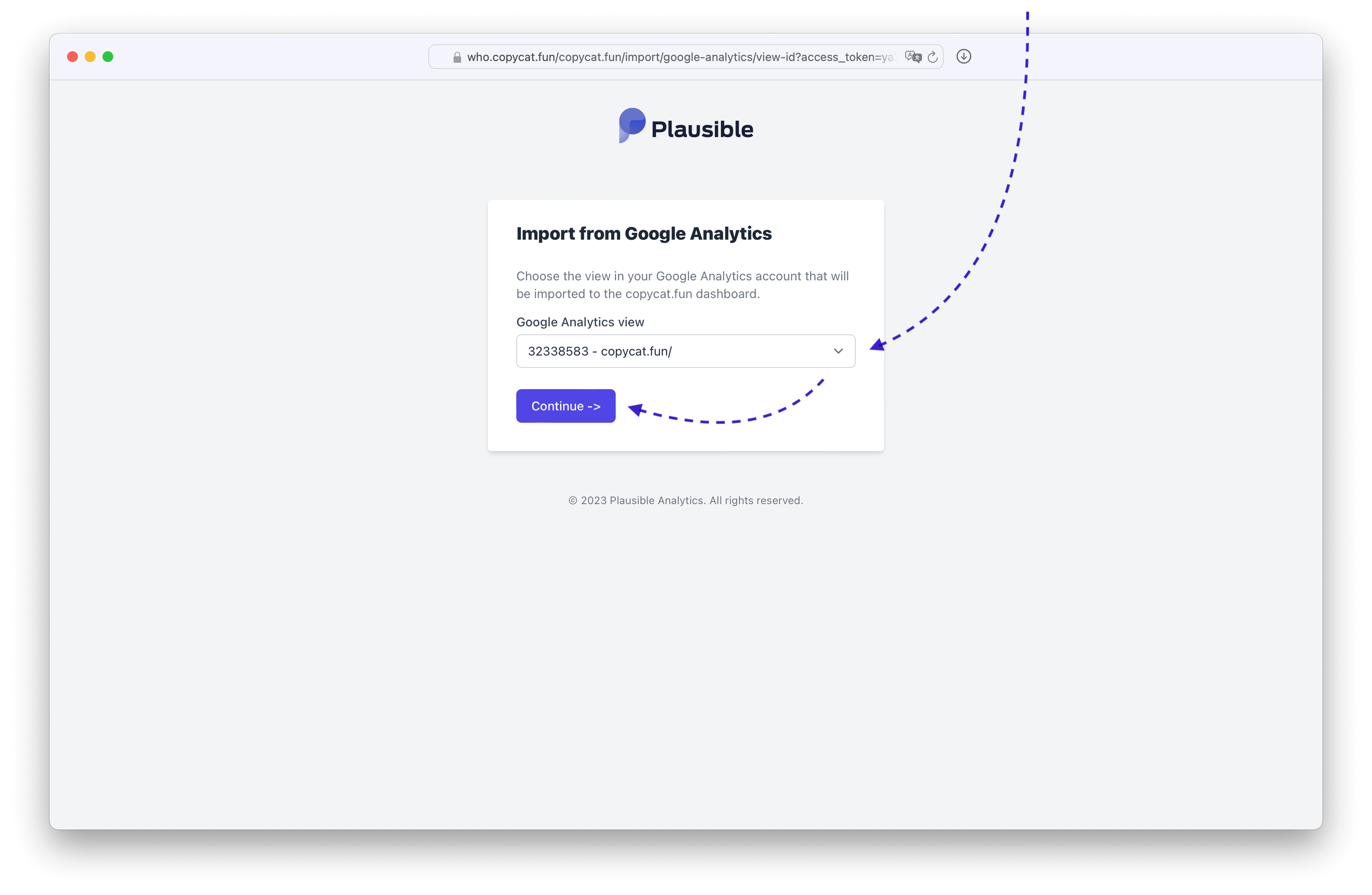 You'll receive an email once the data is imported.